

Airtable project management combines the simplicity of spreadsheets with the power of a robust project management system, making it a versatile, cloud-based platform for teams of all sizes. Built to help teams manage complex workflows with ease, the software offers a flexible structure that adapts to how you work—whether you're overseeing marketing campaigns, launching new products, or managing team operations.
As you’ll discover in this Airtable tutorial for beginners, the platform enhances collaboration through shared workspaces, automates repetitive tasks with built-in workflows, and integrates with tools your team already uses.
If you’ve ever wondered what is Airtable and how it works, or how to streamline your team’s operations, this guide will walk you through everything—from setup to advanced project tracking—all based on the official tools and templates.
Before diving into the details, it's essential to grasp what is Airtable and how to initiate your first workspace. Below, we'll walk through the initial steps every new user needs to master.
Setting Up Your Workspace
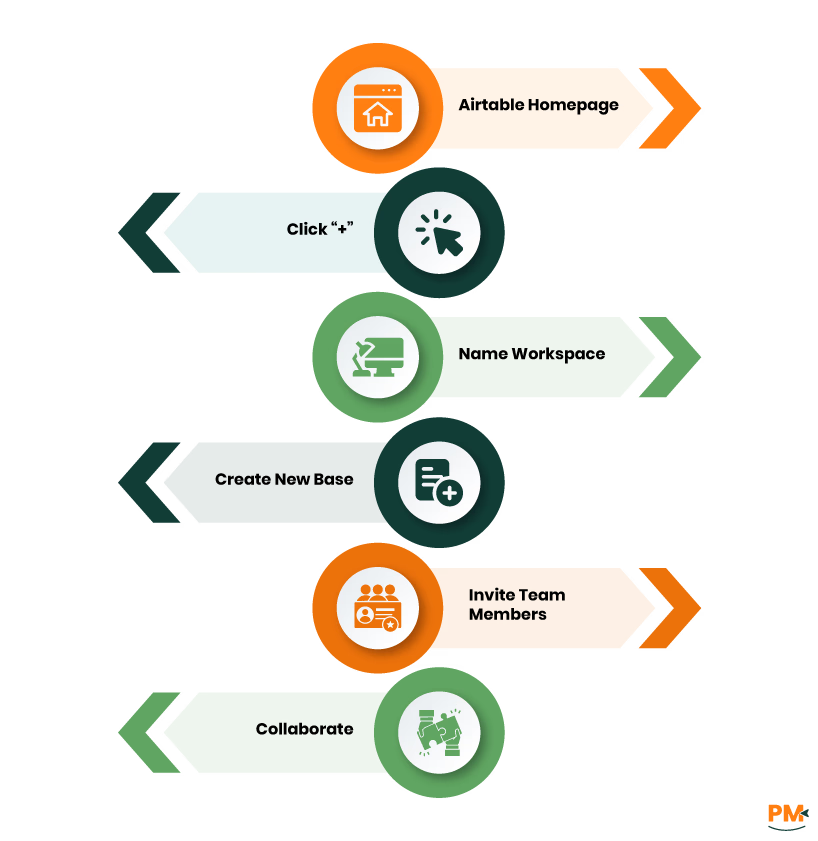
To create a workspace in Airtable:
- Go to your Airtable homepage and click the ‘+’ icon next to your workspaces
- Name your new workspace and choose to either
- Create a new base immediately
- Invite team members to collaborate right away
Set permissions to manage access
- You can control who can view or edit content at the workspace or base level
- On paid plans, use granular permissions for roles like editor, commenter, or read-only viewer
Creating a New Base
To start a new project:
- Click Add a base’ in your workspace
Choose one of two methods:
- Start from scratch by building your own structure
- Use a pre-built template from Airtable’s extensive library (e. g. , Product Launch, Content Calendar, Event Planning)
Once your base is created, explore different views to visualize project data:
- Grid View – Traditional spreadsheet layout
- Kanban View – Card-style layout ideal for stages or workflows (e. g. , To Do, In Progress, Done)
- Calendar View – Organize tasks and events by date
- Gallery View – Visual card layout great for assets, portfolios, or design projects
These views support Airtable for beginners by offering flexible ways to manage data visually.
Customizing Fields and Records
Each Airtable table consists of records (rows) and fields (columns) that can be tailored to fit your project needs.
To customize fields:
- Click the ‘+’ icon to add a new field/column
Choose from field types such as:
- Single select – For task status (e. g. , Not Started, In Progress)
- Collaborator – For assigning team members
- Date – For start and due dates
- Checkbox, Attachment, Number, etc.
Define key fields like:
- Task Name
- Assignee
- Start Date & Due Date
- Priority
- Status
Modify any field by clicking its header to rename, change the type, or hide it from view.
To effectively execute Airtable project management, mastering how to plan and schedule projects is key. It offers visual tools like Kanban cards and Calendar views, as well as timeline features with milestones and deadlines to keep everything on track.
Utilizing Kanban and Calendar Views
Switch between views easily:
Navigate the ‘Views’ sidebar in your base and select Kanban, Calendar, Grid, Gallery, or Gantt/Timeline. This flexibility lets you shift perspectives as needed
Visualize workflow with Kanban:
In the Kanban view, records appear as cards grouped by a single-select field such as status (e. g. , To Do, In Progress, Done). You can customize the cards and stacks by selecting which field to ‘Stack by’
Track scheduling with Calendar:
The Calendar view displays records by their date fields, making it easy to spot upcoming deadlines and events. You can also toggle views to calendar to track tasks over time
These visualizations support how to use Airtable effectively, helping teams visualize upcoming work and workflows at a glance.
Setting Milestones and Deadlines
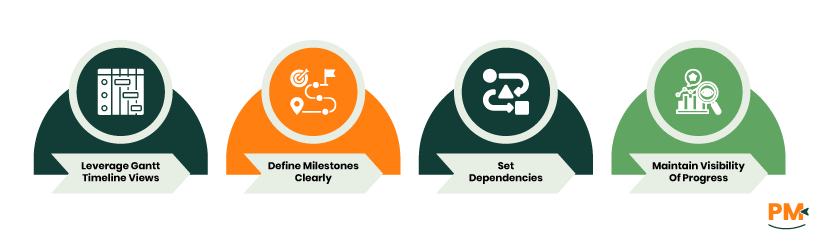
Leverage Gantt/Timeline Views
Use the Gantt view to plot tasks along a timeline. Tasks with start and end dates are displayed as bars, and tasks without a start date but with an end date appear as milestones (diamond symbols)
Define Milestones Clearly
Turn on the ‘Use milestones’ feature to mark key checkpoints like deliverables or launch dates. Milestones appear as vertical diamonds on your Gantt chart
Set Dependencies
In the Gantt view, link tasks via dependency arrows to show relationships and critical paths. This ensures that a delay in one task updates related timelines
Maintain Visibility Of Progress
The Gantt chart gives real-time updates on who owns each task, dates, and status—all in a visual roadmap format
By combining customizable Kanban stacks, clear Calendar scheduling, and robust Gantt timelines with dependencies and milestone tracking, Airtable helps you plan and schedule projects efficiently while delivering clear visual insights into team progress and potential bottlenecks.
Effective project management tool depends heavily on seamless collaboration. Airtable offers robust features for sharing, commenting, and setting up notifications to facilitate team communication.
Sharing Bases and Workspaces
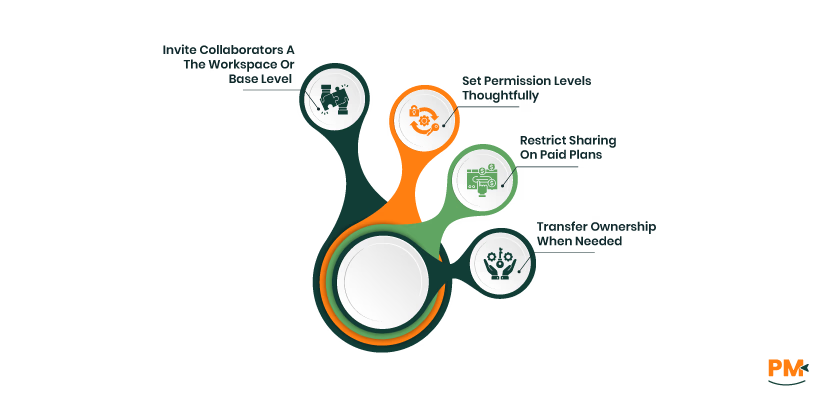
Invite Collaborators At The Workspace Or Base Level
- Click ‘Share’ in the top-right of a workspace or base.
- Add collaborators by email or generate shareable links. Set permissions as Owner/Creator, Editor, Commenter, or Read-Only
Set Permission Levels Thoughtfully
- Owner/Creator: full control – can invite others, edit structure, create automations
- Editor: modify records/tables/views but can’t change permission settings.
- Commenter: can comment but can’t edit records.
- Read-Only: view-only access
Restrict Sharing On Paid Plans
- Workspace owners can prevent Editors or Commenters from inviting new users or generating share links
Transfer Ownership When Needed
- Users with Creator permission can transfer workspace or base ownership via the ‘Manage access’ options
- These features simplify how to use Airtable for team collaboration by ensuring the right people have the right access.
Commenting and Notifications
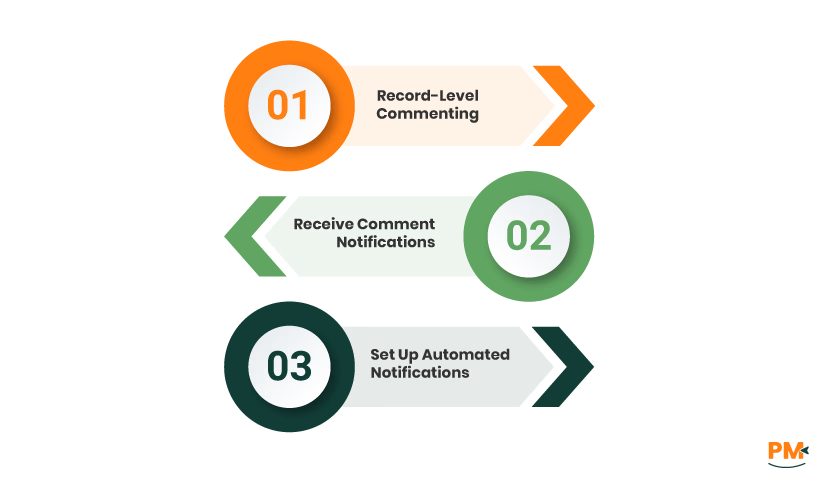
Record-Level Commenting
- Open a record, press the spacebar, and add comments or @mention teammates to loop them in
- Comments appear in the record’s activity feed and revision history
Receive Comment Notifications
- Click the bell icon in an expanded record and select whether to be notified for all comments or only @mentions
- Ensure your email and mobile notifications are enabled under Notification Preferences
Set Up Automated Notifications
- Use Airtable Automations to send alerts via Slack, Microsoft Teams, or email when records are updated, new tasks are added, or comments are posted
- Create custom triggers and actions (e. g. , "When record matches conditions → Send Slack message") to maintain alignment
- By combining sharing controls, comment threads, and automated notifications, Airtable enables clear, real-time collaboration—a key aspect of effective beginners' teamwork.
To maintain momentum, it's crucial to monitor progress and team performance. Airtable equips businesses with powerful tools like filters, grouping, and automated reminders to keep projects on track.
Using Filters and Grouping
Apply Filters To Views
- Click the filter button in any view
- Set conditions like ‘Due date is before X’ or ‘Assignee is [Name]’ to display only relevant records
- Combine multiple conditions using And/Or logic to create focused, task-specific views
Organize Records With Grouping
- Use the Group button in views to categorize items by fields like Status, Assignee, or Date
- You can nest groups and use summary bars to see counts or totals for each category
- Drag records between groups to reassign or update status dynamically
Setting Up Alerts and Reminders
Create Automated Reminders Using Automations
- Add a Date field (e. g. , ‘Reminder’) with time enabled.
- Add a Formula field
- Create an automation with the trigger ‘When record matches conditions’ on that formula field, and set actions like sending email, Slack, or Teams notifications
Configure Custom Alerts
- Use Airtable Automations to trigger notifications based on conditions such as ‘Deadline within 3 days’ or ‘Status = Needs Review’
- Choose your notification method—email, Slack, or Microsoft Teams—and customize content with dynamic fields from your records
- Schedule recurring reminders
- For calendar-driven alerts (e. g. , task due today), create a filtered view and set up a Schedule-based trigger—for example, daily at 9 AM—to send reminders automatically
Use Airtable to streamline repetitive work, empowering your team to focus on impactful tasks without manual overhead.
Creating Automated Workflows
Set Up Automations With Triggers And Actions
Choose triggers like ‘At scheduled time,’ ‘When record updated,’ or ‘When button is clicked’
Pair them with actions such as creating records, sending notifications, or running scripts
Build Simple Flows
- Scheduled reminders (e. g. , daily check-ins)
- Notifications when status changes
- Approval prompts via buttons or Slack
These tools show how to use Airtable to replace manual steps efficiently.
Integrating with Other Tools
Native Connections For Productivity Apps
Use Automations to send messages to Slack, Teams, or email
Form And Script Triggers
Start Automation workflows from form submissions or button clicks
These integrations extend the software by bridging it with systems your team already uses.
Utilizing Templates
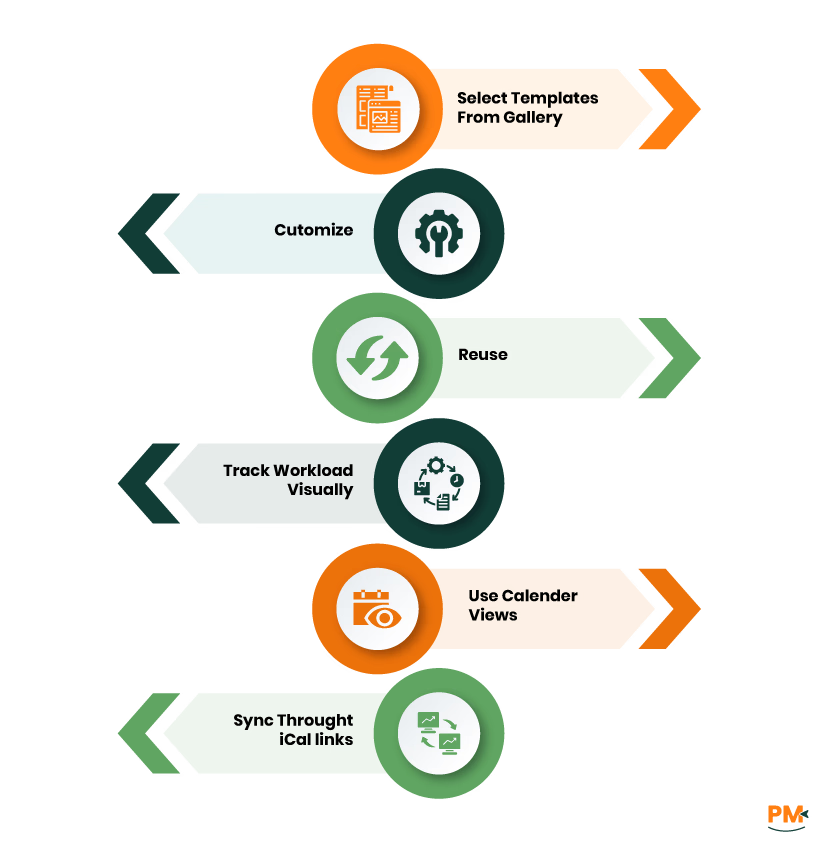
- Start with Airtable’s built-in template gallery by selecting templates like Product Roadmap, Content Calendar, or Gantt, and add them to your workspace instantly
- Customize and reuse structures to ensure consistency and save setup time
Implementing Resource Management
- Visual workload tracking to group views by ‘Assignee’ or ‘Status’ to balance workloads
- Use calendar views and shared iCal links to sync these with external calendars to see individual schedules and avoid overbooking
Is Airtable suitable for Agile project management?
Yes, Airtable supports Agile workflows through flexible views like Kanban, Calendar, and Timeline. You can plan sprints, manage backlogs, and track progress using customizable templates and automations.
Can I track project budgets in Airtable?
Yes. You can create fields for budgeted vs. actual costs, use formulas for real-time calculations, and apply filters or groupings for financial oversight.
Does Airtable offer mobile access?
Yes. Airtable provides fully functional apps for iOS and Android, allowing you to view, edit, and collaborate on projects from anywhere.
How secure is my data in Airtable?
Airtable uses SSL encryption, SAML-based SSO, and supports granular permissions for enterprise plans. Data is encrypted at rest and in transit.
Is there a learning curve for new users?
Airtable is beginner friendly. It combines the familiarity of spreadsheets with a drag-and-drop interface, and offers built-in templates, help articles, and a supportive community to ease onboarding.