
Choosing the right bug and issue tracking software isn’t just about ticking boxes—it’s about finding a tool that fits your team’s workflow and scale. Bugzilla and Jira are two prominent options in this space, but they serve different audiences and use cases. Bugzilla is a long-established, open-source bug tracker originally developed and used by Mozilla Project. It’s free and feature-rich for defect tracking, though its interface and features. Jira, by Atlassian, is a modern SaaS platform used for issue tracking and agile project management. It offers built-in Scrum/Kanban boards, customizable workflows, and tight integration with other Atlassian tools. In this comparison, we’ll break down how Bugzilla and Jira perform in features, usability, pricing, and more—so you can decide based on facts, not buzzwords.
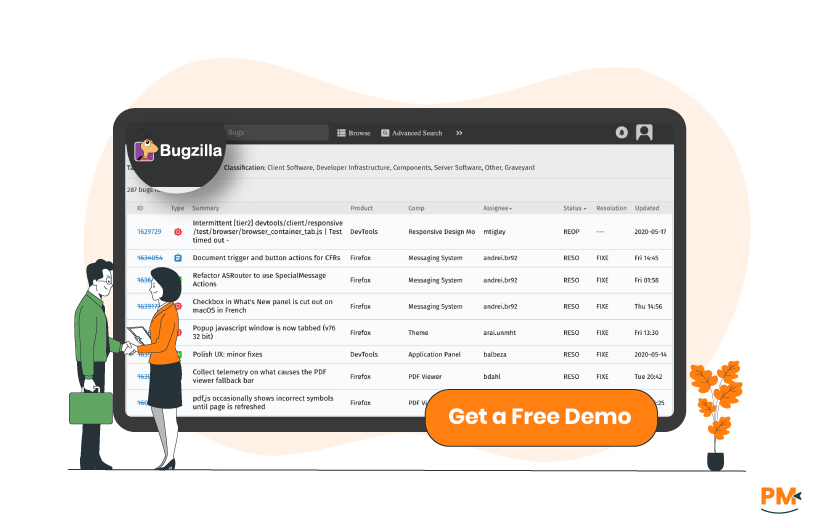
Bugzilla is a web-based bug and issue tracker initially created by Mozilla. It’s free and open-source software that many organizations adopt once they outgrow simpler tools. In other words, Bugzilla is robust for defect tracking: you can record bugs, enhancements, and issues, manage their status, and track resolutions. Teams use Bugzilla when they need mature search and workflow capabilities without paying licensing fees. It runs on your own server (Windows, Linux, Mac, etc. and offers features like email-based submissions, custom fields, and advanced search. Because it’s self-hosted, you handle installation and maintenance, but you also get complete control over data.
Bugzilla Pros And Cons
Pros
- Free And Open-Source: No licensing costs. Bugzilla is “free as in freedom and free as in price,” with no per-user fees. This is ideal for budget-conscious teams
- Feature-Rich Bug Tracking: It offers strong core features (custom fields, workflows, search, email notifications, and even built-in time tracking) without extra costs
- Advanced Search Options: Bugzilla offers two search options: a simple, Google-like search for quick results, and an advanced search for building detailed, time-based queries
- Customizable And Lightweight: Administrators can define custom bug statuses, fields, and workflows. Bugzilla’s minimalism means it can run on modest hardware with good performance
Cons
- Outdated Interface: Bugzilla’s web UI hasn’t seen major redesigns for years. Many users describe it as “old and a bit confusing”. New users may find it less intuitive than modern platforms
- Self-Hosting Overhead: Being self-managed means you bear the cost and effort of hosting, backups, and upgrades. There is no official vendor support – only community forums and documentation

Jira is a commercial issue and project tracking platform from Atlassian. It provides a centralized, collaborative workspace for teams to plan, track, and manage work. As an Atlassian product, Jira comes in several flavors (Jira Software for dev teams, Jira Service Management for ITSM, etc.) , but in general it handles bugs and tasks within a broader project context. Key features include Scrum and Kanban boards, backlog management, customizable workflows, and real-time reporting. Because Jira offers cloud service, you don’t have to worry about servers – Atlassian handles uptime and updates. Jira’s ecosystem is vast: it natively integrates with Confluence (for documentation), Bitbucket/GitHub (for code), and thousands of third-party apps.
Jira Pros And Cons
Pros
- Feature-Rich: Jira shines with built-in Agile support. You get Scrum/Kanban boards, sprint planning, roadmaps, and advanced workflows out of the box
- Integration Ecosystem: As part of Atlassian’s suite, Jira links easily to Confluence, Bitbucket/GitHub, and other tools. You can also plug Jira into your existing toolchain for end-to-end visibility
- Cloud Deployment: For cloud customers, Jira gets continuous feature updates without maintenance on your part. It also offers enterprise-grade uptime SLAs, data backups, and compliance on higher plans
- Extensive Support: Atlassian provides documentation, community forums, and (for paying customers) technical support
Cons
- Cost Per User: Unlike free Bugzilla, Jira is subscription-based. You pay per user seat (plus additional cost for some advanced features). This can add up, especially for large teams
- Complexity And Learning Curve: Jira’s richness is a double-edged sword. Novice users often feel overwhelmed by the number of fields, workflows, and settings
Tasks And Workflow Management

Bugzilla is primarily ticket-centric. It tracks bugs and change requests in a list-based format. You can customize workflows via statuses (Open, In Progress, Resolved, etc.) and add custom fields or triggers to move bugs through a process. Administrators can enforce mandatory fields or dependencies on bugs, but there are no visual task boards or Kanban views. You don’t get native “subtasks” or to-do checklists within a bug; everything is a bug ticket. The upside is that Bugzilla’s workflow system is simple and fast: it automatically notifies people, blocks duplicates, and can auto-assign or transition issues based on criteria.
Jira provides a full agile project management layer on top of issue tracking. You can create user stories, tasks, epics, and subtasks and visualize them on Scrum or Kanban boards. Workflows in Jira are highly configurable: for each project you can define custom states and transitions, set permissions on who can move issues, and add conditions or post-functions. There are also automation rules (global or project-specific) to trigger actions (like moving stale bugs to review). Importantly, Jira’s “projects” can represent anything (software projects, IT requests, marketing campaigns, etc.) , each with its own schema of issue types and fields. The result is that Jira handles tasks and workflows natively: you can plan sprints, set backlog priorities, and track progress in one place. If needed, Jira can connect to DevOps pipelines (e. g. auto-transitioning issues when code is committed).
In short, Bugzilla keeps it to basic ticket workflows, while Jira offers a comprehensive tasks and process management suite.
Customer Support

Bugzilla: Being open-source, Bugzilla’s official support is community-driven. You get access to mailing lists, forums, and documentation on bugzilla. org. There’s no helpdesk or chat support unless you pay a third party. Many teams rely on the Bugzilla IRC channel or partner with consultants for help. The upside is transparency: you can modify the code if you have in-house expertise. The downside is that resolution times depend on community responsiveness and your own team’s effort.
Jira: Atlassian provides structured support for Jira customers. Cloud subscribers on Standard and above get support tickets (with faster response on Premium). There’s also a comprehensive knowledge base, documentation, and a huge user community. Reviews are mixed: some users praise Atlassian’s developer community and training resources, while others note that live support can be slow unless you’re on top-tier plans. In practice, Jira’s support quality often depends on the plan and the complexity of the problem.
Overall, Jira’s vendor support options are more robust (especially in paid tiers) than Bugzilla’s purely community support.
Collaboration Functionality

Bugzilla: Collaboration in Bugzilla revolves around the ticketing context. Team members can comment on bugs, CC each other, and receive email updates. There’s a “request system” that lets one user ask another to take action on a bug (e. g. to fix it or grant an attachment view). You can also watch bugs to get notifications of changes. Bugzilla allows private comments and private attachments, so you can discuss sensitive details without exposing them to all users. However, there is no built-in real-time chat, no @-mention syntax, and no multi-person threads beyond comments. For cross-team discussions, people typically email or use other tools
Jira: Jira’s collaboration features are stronger and more modern. Within an issue, users can @mention teammates to draw attention, and everyone can see a history of comments. Issues can be assigned or watched, and you can attach files or screenshots directly. Jira also has “shared dashboards” and integrated roadmaps so the team can visualize progress together. Additionally, Jira integrates with communication platforms: for example, you can push issue updates to Slack or Microsoft Teams channels, or use chat apps to search Jira issues. If you use Confluence, that becomes another way to collaborate on documentation and then link back to Jira tickets.
In short, Jira provides built-in tools and integrations (Confluence pages, chat links, team notifications) that support cross-functional collaboration far beyond Bugzilla’s basic ticketing discussions.
Cross-Platform Support
Bugzilla’s server can run on Windows, Linux, or Mac OS, and users access it through a web browser. This means developers on any OS can use it, and you’re not locked into specific desktops. However, Bugzilla doesn’t have an official mobile app. The interface is designed for desktop browsers; while it can be accessed on mobile browsers, the experience is not optimized for touch screens. In practice, mobile or offline access is limited – teams may use email-to-bug features (file a bug via email) instead of a mobile UI.
Jira: Atlassian has invested in cross-platform clients. The Jira Cloud platform has responsive web UI (works on Chrome, Edge, Safari, etc.) and fully-supported mobile apps for iOS and Android. The mobile apps let agents update issues, comment, and transition statuses on the go. For macOS or Windows, Jira has Atlassian Companion (for uploading large files) and can integrate with desktop productivity apps via its API. Additionally, Jira’s browser UI is continually updated for performance and accessibility.
If your team needs to work from phones or varied operating systems, Jira’s solutions offer more native flexibility than Bugzilla’s web-only setup.
Ease Of Use And UI

Bugzilla: The interface is straightforward but dated. It presents information in tabbed or columnar views with basic HTML forms. Many users report that it’s easy to navigate for those who know it, but beginners can be thrown off by its plain look. The simplicity means fewer distractions, but also less guidance – you won’t find modern onboarding wizards. Overall, daily ticket triage is quick once set up, but customizing workflows or reports has a steeper manual learning curve.
Jira: Jira’s UI is more modern and dynamic. You get dashboards with widgets, drop-down filters, and in-context help. Agents can personalize their views (create custom filters, add columns, configure boards). New users see lots of options (projects, boards, issues, reports), which can be overwhelming at first. Atlassian has added tooltips and guided tours to help, but it still takes time to master. The upside is that everything is organized: you can navigate via project sidebars, search boxes, or the backlog panel. For admins, the settings are comprehensive (permissions, schemes, etc.) , so initial setup is involved. In practice, many teams find Jira’s UI powerful and clean once configured, but admit that “there are just too many features” to learn initially.
Time Tracking

Bugzilla: Yes – Bugzilla includes built-in time tracking on bugs. When creating or editing a bug, users can enter an estimate and later log the actual hours spent. You can also set a deadline for a bug. These fields help manage workload and SLAs. The logged hours and estimates can be seen in reports. Since it’s a native feature, you don’t need extra tools: by default Bugzilla captures this data per bug and lets admins run time-based queries. The interface is basic (an input form), but functional. If you don’t need time tracking, you can disable those fields in the configuration.
Jira: Jira also supports time tracking out-of-the-box. Each issue has a “Time Tracking” section (with fields for Original Estimate, Remaining Estimate, Time Spent) that is enabled by default.. Users can log work on issues (enter minutes/hours worked, and describe the work). Jira can auto-calculate remaining estimates or updated totals. On higher plans, Jira provides timesheet gadgets and reports (e. g. Time Tracking Report) summarizing time logs. For advanced needs (billable hours, timers, detailed analytics), teams often install marketplace apps, but for many projects the native logging is enough.
Documenting Capability

Bugzilla: Bugzilla itself doesn’t have a built-in customer-facing knowledge base or documentation portal. It focuses narrowly on tracking issues. Teams can attach screenshots and write descriptions, but there’s no wiki or article system. If you want a public FAQ or self-service articles, you’d need a separate system (for example, link Bugzilla with a project wiki or docs site). Internally, developers often share links to external docs, but Bugzilla stores only issue-related text and files. In short, documentation must live outside Bugzilla. Its strength is in ticket fields and email templates, not content management.
Jira: By itself, Jira Software or Core doesn’t include a full knowledge base either. However, Atlassian provides Confluence for that purpose. A common setup is to link Jira issues to Confluence pages. If you use Jira for development projects, you might use Confluence for design docs and link them to tickets. On the Jira side, you do have a descriptions field, file attachments, and issue linking for basic documentation. But formal article management is offloaded to Confluence or an equivalent platform.

Bugzilla: 100% free. Bugzilla is open-source software under the Mozilla Public License, so there is no per-user or per-server licensing cost. You can download and use it at no charge. That said, factor in hosting and maintenance costs (servers, backups, admin time). If you need professional support, you’d budget for consultants or vendor hosting, but the software itself remains free.
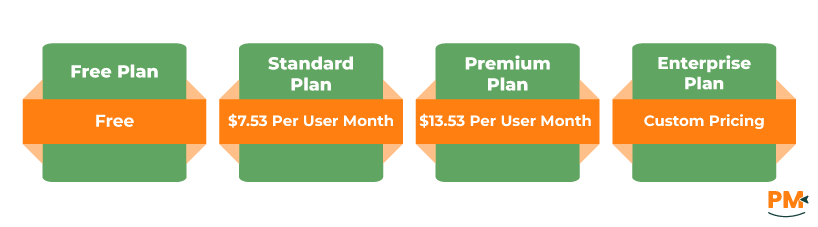
Jira (Cloud) Pricing: Jira is sold as a SaaS with tiered plans. As of 2025, Atlassian offers:
- Free Plan: Up to 10 users, basic features, community support (no charge). Good for tiny teams
- Standard Plan: $7.53 per user/month. Includes all core features (unlimited users, 250 GB storage, project permissions, audit logs, etc.)
- Premium Plan: $13.53 per user/month (annually) tech. co . Adds advanced capabilities like global and multi-project automation, sandbox, and advanced roadmaps
- Enterprise Plan: Includes everything in Premium, plus cross-product insights (Analytics & Data Lake), advanced admin/security, unlimited automation, 24/7 support, and 99.95% SLA
Jira costs can drop per-user if you buy in bulk, but in general expect to pay tens of dollars per user per month at scale. Also consider costs for related tools: Confluence, Bitbucket, and Jira Service Management each have separate plans.
Total Cost Of Ownership: Bugzilla’s TCO is low on license fees but remember the internal cost of maintaining servers. Jira’s TCO includes license fees for all users but gives you cloud hosting and support. For B2B teams, it’s crucial to count both software price and the value of uptime, security, and integrations.
Disclaimer: The pricing is subject to change.
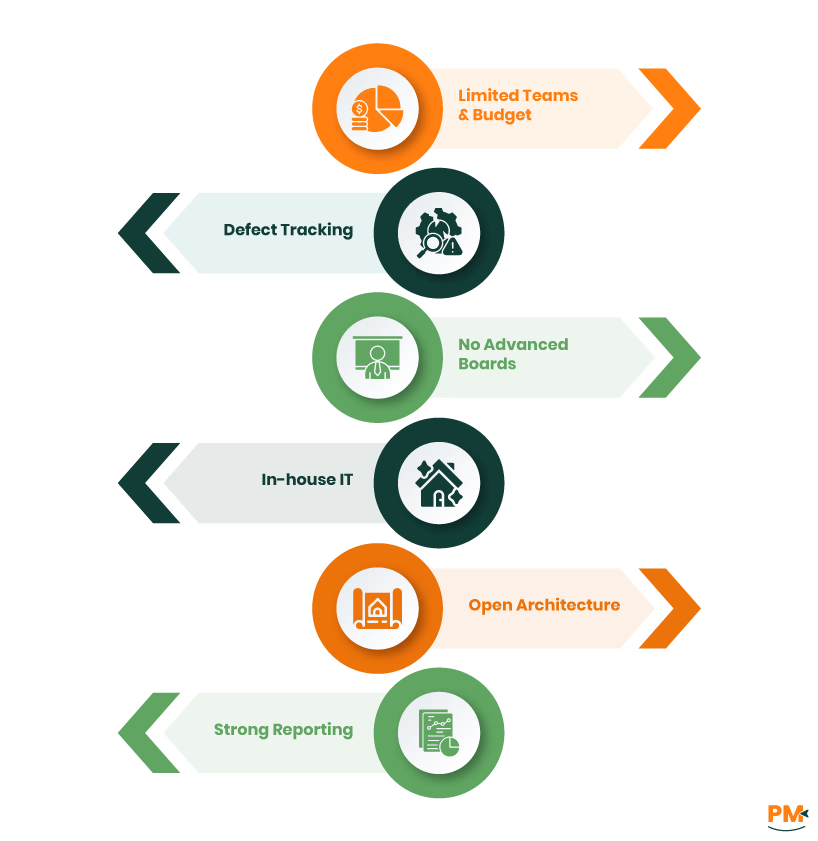
Bugzilla is ideal for technical teams and organizations that want a no-cost, self-hosted bug tracker. It’s a good fit if you:
- Have a small to medium team and a limited budget (or open-source mandate)
- Are primarily focused on defect tracking and don’t need advanced project management or Agile boards
- Don’t mind a steeper setup/maintenance effort (or have in-house IT)
- Prefer an open architecture (you can tweak the code)
- Work in environments where a time-tested tool with strong reporting by fields (and robust search/filters) matters more than a modern UI
Typical users include open-source projects, dev teams in organizations that already self-host their tools, or any B2B software firm that wants to avoid license costs. Bugzilla suits companies that will invest time in customization and can support a community-driven tool. If your team values simplicity, transparency, and free software, Bugzilla could be the right choice.
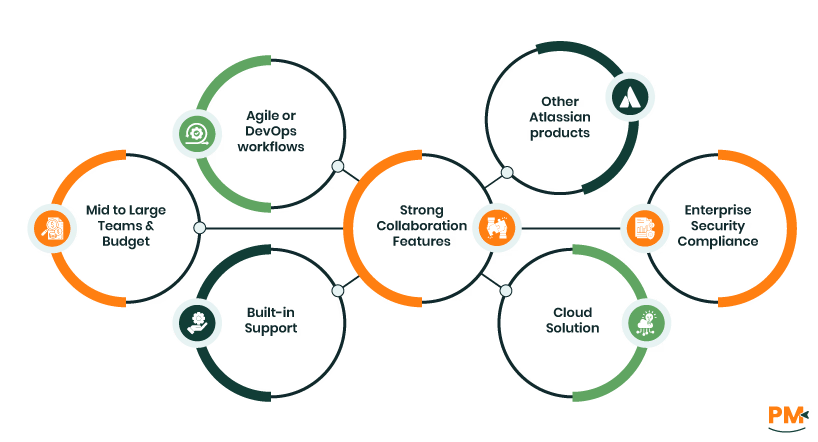
Jira is tailored for organizations that need enterprise-grade issue management and Agile project tracking. It works best if you:
- Are a mid-sized to large team (or growing fast) willing to pay per user
- Follow Agile or DevOps workflows (Scrum, Kanban, CI/CD) and want built-in support for those methodologies
- Need strong collaboration features (real-time boards, @mentions, integration with developer tools)
- Already use or plan to use other Atlassian products (Confluence, Bitbucket, Opsgenie, etc.) for a unified stack
- Want a cloud solution (with minimal setup) or a supported data center deployment
- Need guaranteed support SLAs and enterprise security/compliance
Jira is popular in tech companies, service teams, and enterprises. It’s especially valuable for B2B teams where tracking feature development, customer issues, and project timelines in one system boosts visibility. If your business scenarios involve multiple interlinked tasks and you need customizable workflows or advanced reporting, Jira’s feature set will suit you. In short, Jira fits teams prioritizing scalability, flexibility, and ecosystem integrations, and who can invest in a paid platform.
Choose Bugzilla if you want a cost-free, straightforward bug tracker and have the technical staff to manage setup and hosting. It’s ideal for teams focused on classic defect tracking without needing dashboards, mobile apps, or Agile boards. Great fit for R&D teams using Linux servers who value open-source flexibility and just need to log and follow bugs efficiently—without license costs.
Choose Jira if you need a scalable, highly configurable platform with Agile tools, integrations, and rich automation. It's built for cross-functional teams, large projects, and organizations that require end-to-end traceability, advanced reporting, and fast scaling. Best for those who can leverage its full feature set and absorb subscription costs.
Bugzilla suits simplicity-focused, budget-conscious teams. Jira fits growth-driven teams needing depth, agility, and enterprise support.