

GitLab is more than just a code repository—it is an all-in-one DevOps platform that brings code management, continuous integration, and project planning tools into a single, unified interface. Designed to simplify complex development workflows, GitLab empowers teams to collaborate efficiently, manage tasks visually, and adhere to Agile best practices without needing to rely on multiple third-party tools. Whether you are a startup or an enterprise, GitLab provides an end-to-end solution that enhances visibility, accelerates delivery cycles, and keeps your projects aligned from ideation to deployment.

Let’s get started with this GitLab tutorial for beginners. The first step is to set up your project space—an easy process that helps teams organize tasks, assign responsibilities, and track progress right from the start.
1.Create A New Project
After signing in to your GitLab account, click on the ‘New Project’ button on the dashboard. You can start from scratch, import an existing repository, or use a built-in template. Assign a name, configure the visibility level (private, internal, or public), and click ‘Create Project’.
2.Configure Access Permissions
Once your project is created, navigate to Project Settings > Members to invite team members. GitLab supports multiple roles such as Guest, Reporter, Developer, Maintainer, and Owner. Each role comes with predefined access levels to ensure secure and controlled collaboration.
3.Explore The User Interface
GitLab’s left-hand navigation panel is designed for ease of use, offering quick access to all essential project planning tools in one place. Users can navigate to the ‘Issues’ section to track tasks and bugs, while the ‘Boards’ provide a visual representation of workflows using a Kanban-style layout. The ‘Milestones’ section helps in organizing work around specific deadlines or goals, and the ‘Wiki’ serves as a space for documenting project guidelines and internal knowledge. Additionally, the ‘Repository’ allows seamless access to the project’s codebase. This integrated layout enables teams to move effortlessly between planning, development, and review processes without needing to switch platforms.
GitLab project management suite has built-in project management tools that help teams plan, organize, and track their work without leaving the platform. These components support both simple task tracking and complex cross-project coordination.
Issues
At the heart of GitLab's project management system are Issues—versatile tools for tracking tasks, bugs, and feature requests. Creating a new issue is simple: navigate to the Issues tab, click ‘New Issue,’ and fill in relevant details such as the title, description, due date, and assignee. The description field supports markdown, making it ideal for adding checklists, screenshots, or code snippets.
Issues can be linked to commits and merge requests, providing full traceability. By assigning team members and setting deadlines, teams can clarify ownership and stay aligned on priorities.
Epics (GitLab Premium+)
Epics are a premium feature designed for high-level planning and coordination. An Epic serves as a container for related issues that span across multiple projects or milestones. This is particularly useful for managing large features, strategic initiatives, or long-term goals.
Within an Epic, you can view a timeline, organize issues hierarchically, and monitor progress in real time. By breaking down complex efforts into smaller tasks, Epics help teams maintain visibility and momentum across departments or workstreams.
Milestones
Milestones allow teams to group related issues and merge requests under a shared deadline or goal. They are ideal for planning sprints, release cycles, or any time-bound deliverables.
Each milestone provides a progress tracker that displays the number of completed versus open issues. This visual indicator helps teams assess their pace and identify bottlenecks before deadlines approach. You can create milestones at the project or group level, depending on the scope of your work.
Labels
Labels in GitLab are essential for categorizing, prioritizing, and filtering issues. You can create custom labels such as ‘Bug,’ ‘High Priority,’ or ‘Frontend,’ and apply color codes for quick recognition.
Labels make it easier to generate filtered views or dashboards. For example, combining labels like ‘In Progress’ and ‘Backend’ helps managers instantly find tasks that need attention within a specific team or area.
Issue Boards
GitLab's Issue Boards offer a Kanban-style view that visualizes workflow stages. Each column represents a label (e. g. , ‘To Do,’ ‘Doing,’ ‘Review,’ ‘Done’), and issues are represented as draggable cards.
You can create multiple boards for different teams or workflows, making it easy to track progress and adapt to Agile methodologies. Issue Boards support real-time updates, making collaboration seamless, whether your team is co-located or remote

For teams managing complex projects, GitLab offers advanced tools that enhance visibility, enable detailed planning, and track progress with precision. These features help align long-term goals with day-to-day activities, ensuring timely delivery and resource efficiency.
Roadmaps (GitLab Premium+)
Roadmaps provide a comprehensive timeline view of Epics and Milestones, offering a big-picture perspective of your project’s trajectory. Available in GitLab Premium and higher tiers, roadmaps help project managers visualize how various initiatives overlap and progress over time. By displaying multiple epics on a single timeline, roadmaps enable strategic planning across teams and projects. This tool helps identify potential conflicts, allocate resources efficiently, and communicate upcoming priorities to stakeholders.
Burndown Charts
Burndown charts are essential for Agile teams monitoring sprint progress. These charts graphically represent the amount of work remaining against the sprint timeline, allowing teams to assess whether they are on track to complete all planned tasks. In GitLab, burndown charts update dynamically based on issue status changes, giving real-time insight into team velocity and potential risks. This visualization supports informed decision-making and timely adjustments to workload or priorities.
Time Tracking
GitLab’s time tracking feature lets team members log the hours spent working on individual issues. Users can add time entries directly within an issue’s interface using simple commands or manual input. This data can be aggregated to analyze productivity, identify bottlenecks, and estimate future project timelines more accurately. Time tracking also aids in billing and resource management, especially for teams working on client projects or with fixed budgets.
Effective project management requires seamless communication and shared understanding. GitLab includes powerful tools to foster collaboration directly within the platform, keeping discussions contextual and accessible.
Using Comments And @Mentions For Communication
Within GitLab issues and merge requests, team members can use comments to discuss tasks, raise questions, or provide updates. Comments support markdown formatting, images, and code snippets, making conversations clear and informative.
The @mention feature allows users to tag specific teammates, instantly notifying them and drawing their attention to critical points or decisions. This targeted communication increases accountability and ensures timely responses, preventing miscommunication or delays.
Documenting Projects With GitLab Wikis
GitLab Wikis provide a dedicated space for documenting project-related information such as guidelines, best practices, meeting notes, or onboarding materials. Accessible to all project members, wikis help centralize knowledge, reduce reliance on external documents, and maintain up-to-date resources.
Because wikis support version control, teams can track changes over time and collaborate on content improvements effortlessly. This promotes transparency and supports continuous learning within the team.
GitLab is designed to support Agile teams by providing flexible tools that align with popular methodologies such as Scrum and Kanban. Its planning and tracking features allow teams to implement Agile principles effectively, promoting iterative development and continuous improvement.
Managing Sprints And Iterations In GitLab
GitLab enables sprint management primarily through Milestones, which act as time-boxed containers for issues and merge requests. To set up a sprint, create a milestone with defined start and end dates that correspond to your sprint cycle. Assign issues to the milestone to organize tasks planned for that iteration.
Throughout the sprint, teams can monitor progress using issue boards and burndown charts, adjusting priorities and workflows as needed. This approach keeps work focused, measurable, and aligned with Agile delivery goals.
Creating Custom Workflows With Issue Boards
GitLab’s Issue Boards are highly customizable, allowing teams to tailor workflows according to their unique processes. You can create columns based on labels representing different stages such as ‘Backlog,’ ‘In Progress,’ ‘Code Review,’ or ‘Testing.’
By assigning labels to issues and dragging cards across the board, teams gain a clear visual of task statuses and bottlenecks. Custom workflows empower teams to optimize their processes, improve transparency, and foster better collaboration aligned with Agile values.
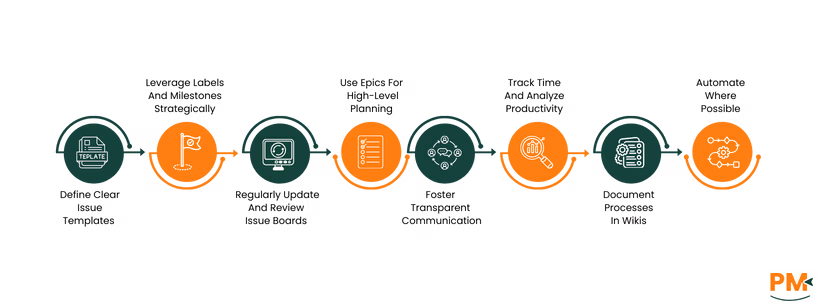
Maximizing GitLab’s potential requires adopting strategies that streamline workflows, enhance collaboration, and maintain clear project visibility. This GitLab guide outlines actionable tips to help teams manage projects efficiently and effectively within the platform.
1.Define Clear Issue Templates
Use issue templates to standardize how tasks, bugs, and feature requests are reported. Consistent templates improve clarity, reduce back-and-forth communication, and speed up issue resolution.
2.Leverage Labels And Milestones Strategically
Organize work by applying meaningful labels and grouping issues under relevant milestones. This helps prioritize tasks, track progress, and maintain focus on critical deliverables.
3.Regularly Update And Review Issue Boards
Keep issue boards current by encouraging team members to update issue statuses frequently. Regular reviews during standups or sprint planning meetings ensure everyone stays aligned, and bottlenecks are addressed early.
4.Use Epics For High-Level Planning
For complex projects, group related issues under epics maintain a clear overview of progress and dependencies across teams and projects.
5.Foster Transparent Communication
Encourage the use of comments and @mentions to maintain open dialogue within issues and merge requests. Prompt communication reduces misunderstandings and accelerates decision-making.
6.Track Time And Analyze Productivity
Utilize GitLab’s time tracking feature to log work hours on issues. Reviewing this data helps teams estimate future tasks more accurately and optimize resource allocation.
7.Document Processes In Wikis
Maintain project documentation, guidelines, and knowledge bases in GitLab Wikis. Up-to-date documentation supports onboarding and keeps everyone informed.
8.Automate Where Possible
Take advantage of GitLab’s automation capabilities, such as CI/CD pipelines and issue closing via commit messages, to reduce manual work and improve consistency.
How does using GitLab for project management compare to other project management tools?
GitLab combines project management with code and DevOps tools, reducing the need for multiple platforms.
Can non-developers use GitLab for project management?
Yes, its features are user-friendly and suit various teams beyond developers.
Is GitLab suitable for large-scale project management?
Yes, it supports large teams with advanced features like epics and roadmaps.
How secure is project data within GitLab?
GitLab uses strong security protocols and role-based access to protect data.
Does GitLab support third-party integrations?
Yes, it integrates with many popular tools like Jira, Slack, and Trello.