

Hive is a unified project management and collaboration platform designed to help team streamline workflows, improve visibility, and manage work efficiently across departments and functions. It offers a centralized system for task management, allowing teams to assign, track, and organize work using multiple project views such as Kanban, Gantt, Calendar, and Table formats.
The platform also includes native time tracking, enabling teams to log hours and monitor productivity directly within the workspace. Built-in communication tools like direct messaging and task comments support real-time collaboration, while over 1,000 integrations including Google Workspace, Slack, Zoom, and Salesforce, ensure seamless connectivity with the tools teams already use.
With its scalability and versatility, Hive project management is suitable for teams of all sizes across industries such as marketing, operations, education, and professional services.
This blog explores what Hive software is and how it can be used to enhance operational efficiency for businesses of all sizes.
This section outlines the foundational steps required to begin using Hive effectively as a project management tool.
Creating Your Hive Account
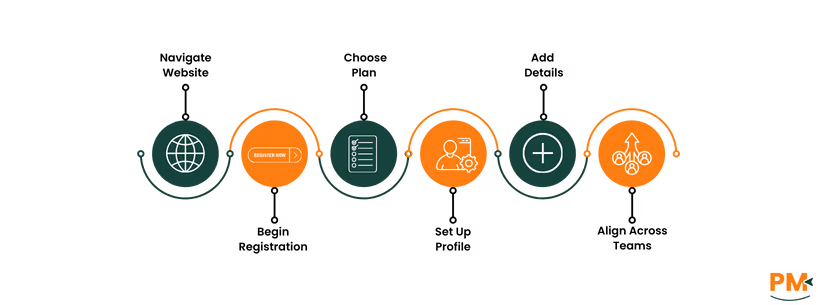
Sign Up Process
- Navigate to Hive’s website and click ‘Get Started’ to begin your registration. Hive offers a ‘Free’ plan (also called Hive Solo) and paid options. The Free plan supports up to two users and provides core features like unlimited storage, tasks, projects, notes, and integrated chat
- Paid plans include ‘Starter’, ‘Teams’, and ‘Enterprise’, which unlock advanced capabilities such as Gantt charts, unlimited workflows, enhanced storage, and robust time-tracking, making it a scalable solution for larger projects
Setting Up Profile
- Once registered, users can set up their profile by adding a name, photo, role, and time zone preferences
- The aforementioned details help align notifications, assignments, and communications across teams
Setting Up Your Workspace
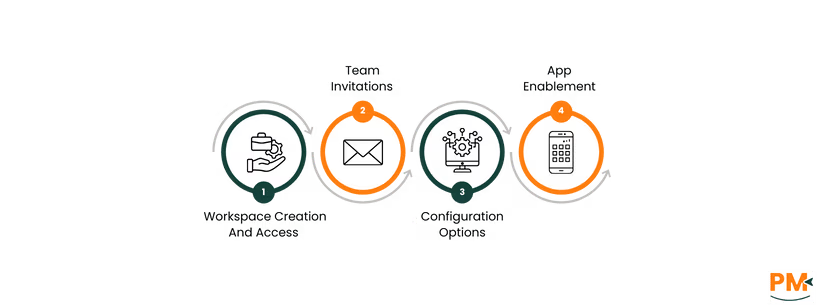
A workspace serves as the central hub for all projects and collaboration within Hive. Upon account creation, a workspace can be established and configured as follows:
- Workspace Creation And Access: Workspaces can be created and managed from the user settings menu. Admins can configure workspace details such as name, logo, default currency, and working days
- Team Invitations: Members can be invited via email and assigned to specific departments or roles. External users can also be added with restricted access to certain projects – ideal for contractors or clients
- Configuration Options: Admins can control visibility settings, weekend work rules, holidays, and more to ensure alignment with organizational policies and project timelines
- App Enablement: Hive offers optional tools like time tracking, goals, resourcing, and forms that can be activated from the apps menu to extend functionality depending on the selected plan
By completing these initial steps, teams can establish a structured environment for managing work collaboratively and efficiently using Hive project management tools and capabilities.
A clear understanding of the user interface is essential for efficient use of Hive software. The platform is designed with intuitive navigation, making it easy to access projects, tasks, and updates.
Understanding the Dashboard
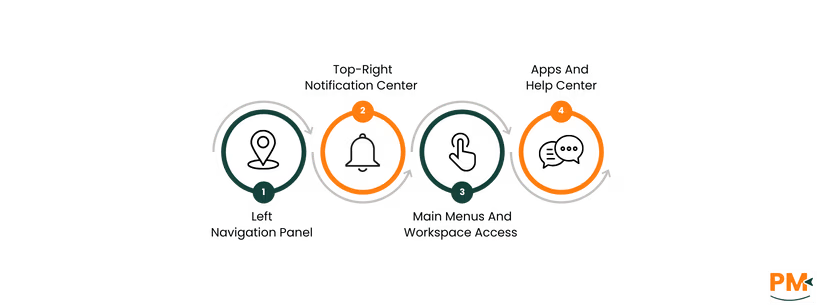
The Hive dashboard centers around several key areas:
- Left Navigation Panel: It includes project navigator which displays all active projects and ‘My Actions’ which serves as a personalized to-do list, showing tasks assigned to the user or those awaiting review
- Top-Right Notification Center: Represented by a bell icon, it aggregates alerts for task assignments, mentions, upcoming dealines, and more. Notifications are categorized into various types to ensure contextual awareness
- Main Menus And Workspace Access: The user avatar (initials or photos) provides access to profile and notification settings. Admins can manage workspace settings such as appearance, user roles, labels, templates, and permissions from this menu
- Apps And Help Center: Located on the dashboard’s side menu, the Apps section enables activation of optional tools like time tracking, forms, resourcing, and Hive notes. A help icon connects users to support, documentation, and the Hive community
Exploring Project Views
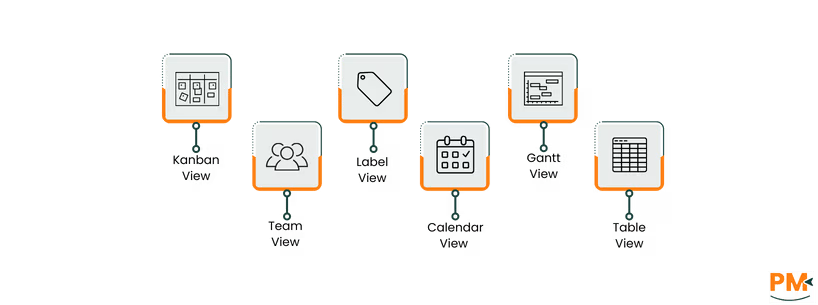
Hive supports six distinct project layouts, enabling teams to tailor views for optimal visibility and efficiency:
- Kanban: A visual board with customizable columns for drag-and-drop task organization
- Team View: Displays actions grouped by assignee, which aids in balancing workloads and reallocating tasks as needed
- Label View: Organizes tasks by labels, enabling project categorization and streamlined filtering
- Calendar View: Presents tasks within a calendar interface, supporting drag-and-drop rescheduling and integration with external calendars like Google Calendar and Outlook
- Gantt View : Offers a timeline of tasks with dependencies. Users can drag to adjust dates, export charts, and share public links
- Table View: Provides a spreadsheet-style interface, supporting sorting, filtering, visual highlighting, and bulk edits
Additionally, ‘Summary View’ allows consolidation of multiple projects into a unified layout (Kanban, Gantt, Calendar, Table, etc.) , enabling cross-project oversight.
Switching between views is seamless. Projects layouts can be changed with a few clicks in the project navigator, facilitating project display while preserving data context and integrity.
This section explains how to create new projects and manage tasks efficiently within Hive, leveraging clear permissions and flexible views.
Starting a New Project
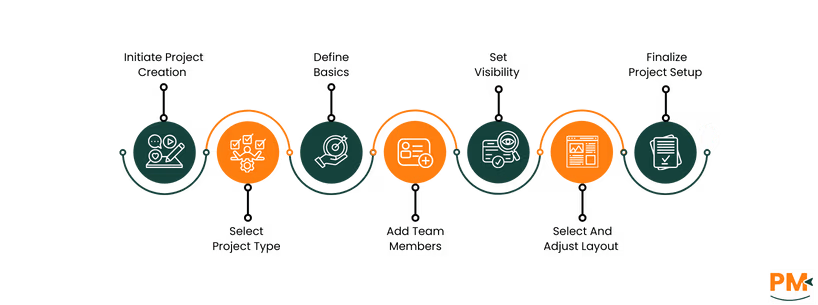
- Initiate Project Creation: In the ‘Project Navigator’, click ‘+ New Project’ to open the setup dialog
- Select Project Type And Define Basics: Choose between starting fresh, using a template, or importing data. Provide the project name, color, optional due date, and description
- Add Team Members And Set Visibility: Choose who can access the project; ‘Everyone’, ‘Specific People’, ‘Private to Creator’. Admins can limit member permissions and enable draft mode for internal planning
- Select And Adjust Layout: Choose from Kanban, Team, Calendar, Label, Gantt, Table, or List. Layouts remain adjustable after creation
- Finalize Project Setup: Click ‘Create’ to establish the project. Existing members gain access; new tabs can be added later
Adding and Assigning Tasks
- Create Tasks ‘Actions’: Use the ‘+New Action’ button in a project or ‘Home/My Actions’ view to add task cards. Enter a title and press ‘Enter’ to save
- Assign Owners: Assign tasks to one or more users. Only project members can be assigned
- Define Details: Add due dates, priority flags, descriptions, sub-actions, and labels for clarity. Optional dependencies can be set via action cards or within Gantt view, enabling visual or automatic schedule relations. Recurring actions can be configured for repetitive tasks to avoid omissions
- Attach Files And Comments: Add context-rich attachments and discussions by using the ‘+’ within action cards
- Leverage Action Templates: Reuse predefined task structures complete with sub-tasks, due dates, and dependencies to save time and maintain consistency
This process ensures clear task delegation, comprehensive detail, and structured project execution using Hive task management features.
Hive offers built-in communication tools designed to improve coordination and maintain context around projects, ensuring real-time collaboration and clear discussion tracking.
Utilizing Hive Chat
Hive Chat enables seamless real-time communication within the platform:
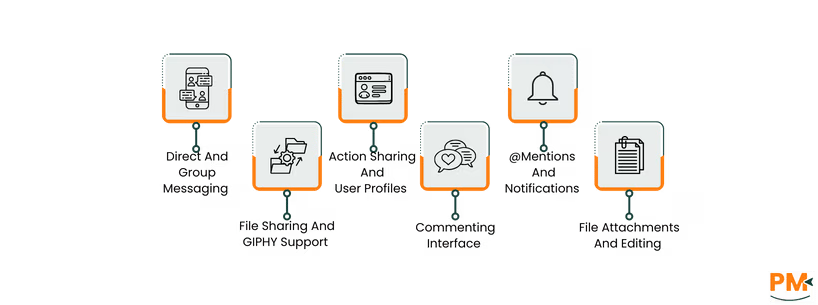
- Direct And Group Messaging: Users can send one-on-one messages or create group chats with team members. New chats are initiated via the ‘New Message’ button in the sidebar, with the ability to include both existing workspace members and external contacts
- File Sharing And GIPHY Support: Files from local drives or integrated storage can be shared directly in conversation with the ‘+’ button, animated GIFs are supported to add levity
- Action Sharing And User Profiles: Tasks (actions) can be dragged into chat threads and hovering over participant names reveals recent activity and action assignments, maintaining conversational relevance
Commenting on Tasks
Comments on task cards facilitate focused, task-speicifc discussions:
- Commenting Interface: Each action card includes an ‘Add a comment’ field where users can type messages and post them directly to the task timeline
- @mentions And Notifications: Comments support @mentions to notify individuals, and shortcuts like @action or @project alert all followers of a task project, ensuring visibility
- File Attachments And Editing: Attachments can be added via a paperclip icon; comments can be edited or deleted by their authors; unread comments are flagged in Table view for quick follow-up
The features enable structured, transparent communication directly tied to work items, reducing email dependency, and improving accountability.
Hive task management provides powerful tools for monitoring task completion, team output, and resource allocation, making it a reliable software for teams focused on measurable outcomes
Using Dashboards and Analytics
- Custom Dashboards: Use the Dashboards app to create tailored views with widgets like task tables, notes, goal tracker, and embedded content. These dashboards centralize real-time project insights
- Pre-Built Analytics Dashboards: Access built-in dashboards such as Workspace Overview and Financial Reporting to track overdue tasks, team workload, and goal progress
- Data Export And Sharing: Export dashboards to CSV or PDF for deeper analysis or presentation, and share insights with stakeholders via public or private links
Time Tracking and Reporting
- Time Tracking: Enable time tracking from Hiva Apps. Users can log hours manually or with a timer directly within task cards. Set estimated hours and track actuals to prevent overwork
- Reporting: Generate detailed reports filtered by assignee, date, or project to evaluate productivity and support client billing
- Capacity Planning: Combine time logs with Hive’s Resourcing feature to plan future workloads and allocate tasks based on team availability
Hive workflow enables businesses to streamline repetitive processes, from internal task updates to multi-application triggers.
Setting Up Automations
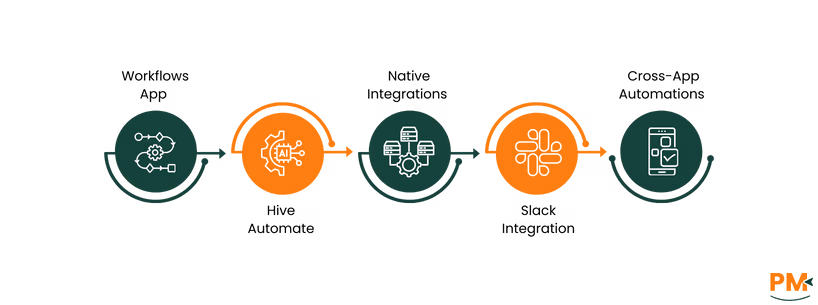
- Workflows App: Activate the Workflows app via Hive Apps. It enables no-code, rule-based task automation within Hive, such as changing labels, assignees, statuses, or sending emails
- Hive Automate: Enable Hive Automate to build multi-step ‘Recipes’ that connect Hive with external tools. Recipes can include triggers, conditional logic, repeat actions, error handling – all via a drag-and-drop interface
Integrating with Other Tools
- Native Integrations: Over 1,000 direct integrations allow users to connect Hive with tools such as Slack, Google Drive, Google Calendar, Zoom, Jira, and Outlook Calendar. These integrations enable inline action creation, file attachment, and calendar syncing
- Slack Integration: Install the Slack integration to share or create Hive actions directly within Slack channels or DMs. Slash commands simplify task creation without leaving Slack
- Cross-App Automations: With Hiva Automate and integrations like Zapier, it is possible to build workflows that span platforms. For example, triggering Hive action creation when a CRM lead is created, sending Slack notifications, or updating external systems based on task status changes
This automation suite reinforces Hive’s capability as a powerful project management tool, significantly reducing manual effort while ensuring seamless coordination across tools and teams
To maximize the impact of Hive project management tools, consider applying the following best practices for templates and workflow customization.
Utilizing Templates
- Access The Template Library: Use Hive’s built-in library of pre-designed templates – from Agile development to content calendars, product launches, and onboarding workflows – to kick off projects immediately
- Create Custom Project Templates: Under the ‘Templates’ tab in Project Navigator, click ‘+New Project Template’. Define project meta data (name, color, layout, assignee), then build out templated actions and sub-actions for reuse
- Convert Projects Into Templates: Any existing project can be transformed into a reusable template via the project’s ‘More’ menu ‘Save as template’. This ensures consistency across similar initiatives
- Optimize Templates: Include start/due dates, placeholders, dependencies, labels, and action durations to ensure smooth replication when templates are applied. This enables accurate scheduling and resource allocation
Implementing Custom Workflows
- Enable The Workflows App: Available via Hive Apps, it allows automation of manual tasks like changing statuses, assigning labels, or sending emails, without coding skills
- Design Workflow Recipes: Use the intuitive builder to define ‘Conditions’ (e. g. status change, new action) and ‘Effects’ (e. g. add label, assign action, create subaction, send email), managing repetitive processes efficiently
- Library And Management: Saved workflows are listed in a shared workspace library. These can be edited or deleted by admins or original creators. Usage limits depend on subscription level
- Integrated Templates Into Workflows: Automate project structure by applying action or project templates as part of workflow logic to streamline task initiation across new projects or stages
By leveraging Templates and Customer Workflow, teams can standardize processes, reduce set-up time, and maintain consistency across repeated projects, ultimately reinforcing an efficient workflow with minimal manual intervention.
Is Hive suitable for Agile project management?
Yes, Hive supports Agile project management through flexible project layouts like Kanban boards, Gantt charts, and scrum-style templates. Teams can implement sprints, backlogs, and iterative workflows using Hive’s customizable tools.
Can I track project budgets in Hive?
Hive doesn’t offer built-in project budgeting tools. However, teams can manage resources using time tracking, action assignments, and integrations with tools like QuickBooks via Zapier to monitor costs indirectly.
Does Hive offer mobile access?
Yes, Hive provides a mobile app available for both iOS and Android users.
How secure is my data in Hive?
Hive uses industry-standard security practices, including SOC 2 Type II compliance, data encryption in transit and at rest, and regular security audits. Enterprise clients also benefit from SSO (Single Sign-On) and custom data retention policies.
Is there a learning curve for new users?
Hive is designed to be user-friendly with a minimal learning curve, offering an intuitive interface, interaction onboarding, knowledge base, and free live support to help new users get started quickly.