

Crafting success in today’s fast-paced digital world begins with Microsoft 365 for project management — a unified, cloud-first setup that lets teams plan, track, and deliver without switching tools. In mid‑2025, Microsoft enhanced this suite with Planner’s improved Status Reports, AI-powered Project Manager agents, and Copilot-enabled workflows to boost collaboration and simplify oversight.
Visualize managing tasks in Planner, communicating in Teams, storing documents in SharePoint, and analyzing performance with Power BI — all from one centralized platform. Beyond convenience, this cohesive ecosystem empowers smarter decision-making, real-time insights, and greater agility across every phase of project delivery.
Fragmented tools—from chat apps and spreadsheets to email threads and file shares—create friction, confusion, and version-control headaches. Microsoft 365 project management solves this by unifying core project functions under one trusted ecosystem:
Teams and Outlook provide real-time conversations and contextual channels, eliminating email clutter. Planner and To Do offer visual task boards and personal task lists, while Project handles advanced scheduling—all synced natively in Teams. SharePoint and OneDrive act as a single source of truth, enabling real-time co-authoring of documents. And Power BI delivers live dashboards and reports, pulling data across Planner, Project, and SharePoint to eliminate manual reporting.
This integrated setup streamlines communication, task management, document sharing, and analytics, helping teams stay aligned without toggling between Microsoft Office project management tools.
Each office 365 project management app plays a strategic role across the project lifecycle—empowering teams to collaborate, plan, execute, and document seamlessly within a unified environment.
Microsoft Teams
Teams acts as the central collaboration hub, bringing together project management tools Microsoft users rely on most: chat, video meetings, file storage, and app integrations. Its key benefits include embedded task tools such as ‘Planner’ and lists that appear right in channels for easy access and real-time updates. Moreover, chats, meetings, and document collaboration keep discussions and actions in one place.
Microsoft Planner
Planner is a visual Kanban-style task board where you can create tasks in buckets, assign team members, set due dates, add checklists, and track progress. Well-suited for Agile or lightweight workflows, Planner helps teams manage sprints, backlogs, and daily stand-ups with clarity.
Microsoft Project For The Web
Project management in Office 365 for the Web features Gantt charts, timeline views, and resource assignments, tailored to streamline formal and complex projects. It supports dependencies, milestones, and hierarchical task structures, making it ideal for multi-phase initiatives or enterprise programs.
Microsoft To Do
Microsoft To Do is a personal task manager that syncs with Outlook and Planner. Designed to capture individual responsibilities, it ensures tasks are flagged, prioritized, and visible in personal daily plan views like ‘My Day.’
Microsoft Lists
Lists provides a no-code platform for tracking items like issues, risks, inventory, or any custom project data. With support for custom views, filters, and conditional formatting, and integration into Teams and SharePoint, Lists adapts to niche tracking needs.
SharePoint Online
SharePoint Online offers robust document repository capabilities: version control, co-authoring, metadata, and team site templates (including project site templates). It serves as a centralized, secure location for all project documentation and collaboration.
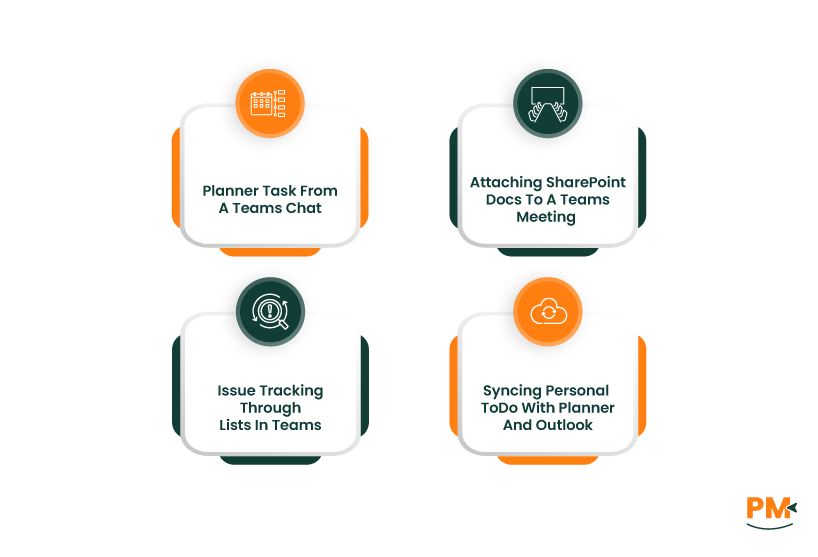
Cross‑app workflows in Microsoft 365 eliminate friction and boost efficiency by keeping tasks, files, and communication tightly connected. Follow the steps below to learn how to use Office 365 for project management:
Planner Task From A Teams Chat
- In a Teams channel or chat, hover over a message and select ‘Create a Task’
- Choose whether to send it to Planner or To Do, select plan and bucket, and add due date/details
- Task is created in Planner, and a link is added to the Teams thread
Attaching SharePoint Docs To A Teams Meeting
- Schedule a meeting in Teams
- Select ‘Attach’ followed by ‘Browse from OneDrive/SharePoint,’ and then pick the relevant file
- Document appears in meeting chat and agenda, with version control intact
Issue Tracking Through Lists In Teams
- Add a ‘Lists’ tab in the relevant Teams channel
- Choose or create a list (e. g. ‘Issue Log’), adjust custom columns/views
- Team members view and update statuses directly in Teams
Syncing Personal To Do With Planner And Outlook
- Enable Planner and To Do integration
- Tasks assigned in Planner appear in ‘To Do’ under ‘Assigned to Me’
- To Do tasks also appear in Outlook’s Tasks or calendar if enabled
Once your core project tools are in place, the Microsoft 365 ecosystem extends into intelligent automation, visualization, and tailored app experiences via the Power Platform—seamlessly enhancing workflows without leaving the environment.
Power Automate
Power Automate empowers users to create no-code flows that automate approvals, notifications, and data syncing across Microsoft 365.
Common flows include:
- Status Approvals: Auto-trigger an approval when a new document lands in SharePoint
- Notifications: Email or Teams reminders for upcoming Planner or Project deadlines
- Lists → Excel Sync: New items in a Lists tracker automatically update an Excel log for deeper analysis
Power BI
Power BI transforms project data into interactive dashboards for real-time oversight. Use cases include visualizing task progress, resource utilization, and deadline adherence. Users can also leverage Microsoft's free Project template for quick setup, connecting data from Planner, Project for the Web, and Lists. This brings high-level insights into project status and helps stakeholders make informed decisions without manual report pulling.
Power Apps
Power Apps enable low-code app creation within your Microsoft 365 ecosystem. Build custom solutions—like time-tracking tools, change-request forms, or field update apps, using Lists or SharePoint as back-end data. Embed these apps in Teams or SharePoint, and feed collected data into Power BI dashboards.
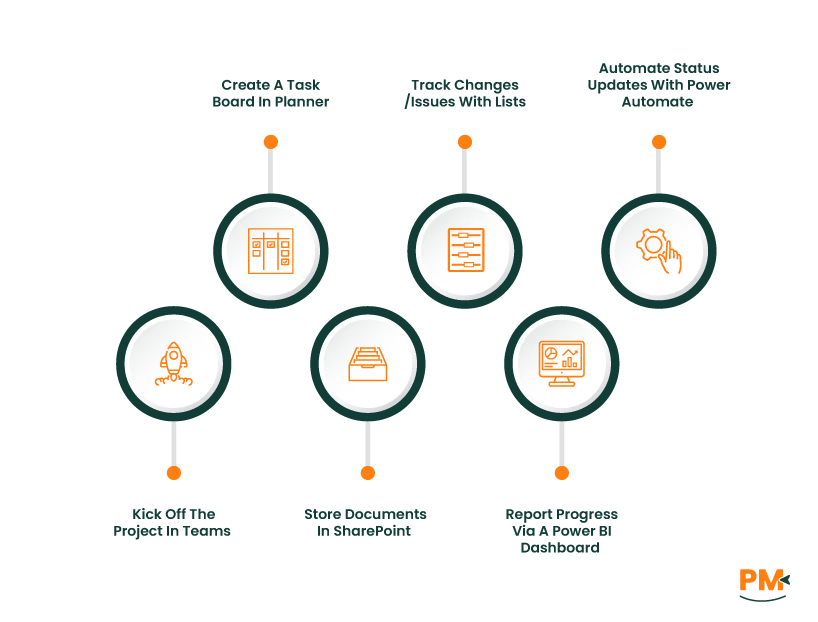
Here’s a practical, step-by-step guide showcasing how to manage a project end-to-end using Microsoft 365 tools:
Kick Off The Project In Teams
- Create a dedicated channel (e. g. , ‘Project Alpha’)
- Add stakeholders and define channel permissions
- Schedule a kickoff meeting via Teams, and include an agenda
Create A Task Board In Planner
- Add a Planner tab to your channel
- Set up buckets (e. g. , To Do, In Progress, Done)
- Assign tasks, add due dates, checklists, and attach relevant files
Store Documents In SharePoint
- Create a project document library
- Define metadata (e. g. , document type, phase)
- Enable versioning and permission control
Track Changes/Issues With Lists
- Add a Lists tab (e. g. , ‘Issue Register’) to your Teams channel
- Create columns for status, owner, priority, and due date
- Input issues or change requests with tracking fields
Report Progress Via A Power BI Dashboard
- Connect Planner and Lists datasets to Power BI (use templates or built-in connectors)
- Build visuals for task completion, issue backlog, resource load, and deadlines
- Schedule data refreshes (e. g. , daily)
Automate Status Updates With Power Automate
- Build a flow: trigger when a Planner task moves to ‘Done’
- Update the related List item (e. g. , change status to ‘Resolved’)
- Send a Teams alert or email to the project manager
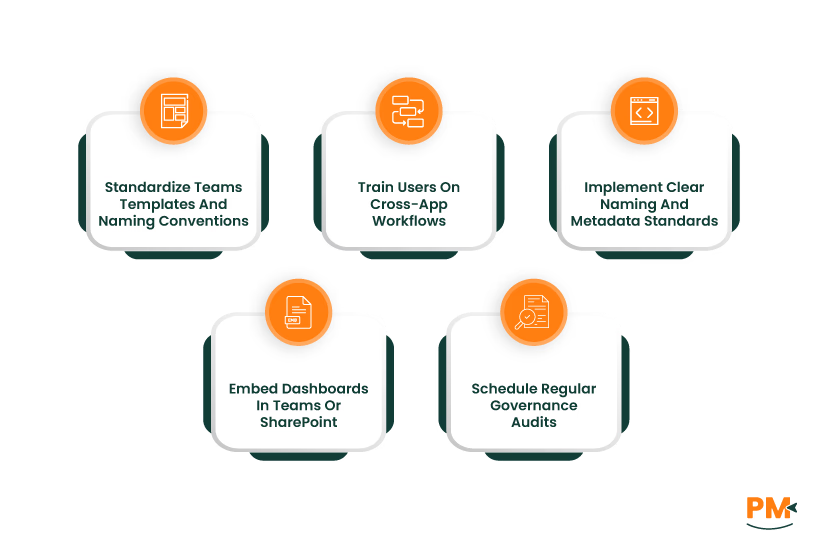
- Standardize Teams Templates And Naming Conventions: Use centrally managed Team templates (e. g. , PRJ‑<Name>) with predefined channels and tabs. This enforces structure, simplifies navigation, and curbs workspace sprawl
- Train Users On Cross‑App Workflows: Host short, focused sessions (e. g. , monthly) on converting Teams messages into Planner tasks, using Lists within Teams, and syncing To Do with Outlook. This drives adoption and minimizes data silos
- Implement Clear Naming And Metadata Standards – Apply consistent naming formats and require metadata (status, owner, version) in SharePoint libraries and Lists. Use templates or calculated fields to automate it, improving searchability and governance
- Embed Dashboards In Teams Or SharePoint: Pin Power BI or project overview tabs in Teams/SharePoint so stakeholders have quick access to real-time metrics and insights without hunting for reports
- Schedule Regular Governance Audits: Quarterly, archive inactive Teams, cleanup outdated Planner tasks, review active Lists, and validate permissions. Use admin reports or PowerShell to detect ownerless, unused, or guest-enabled Teams
Can Microsoft 365 replace dedicated project management software?
Yes. For small to mid-sized projects, Microsoft 365 tools like Planner, Lists, and Project for the Web work well together. But for enterprise-level needs—like advanced resource leveling or critical-path risk analysis—specialized PM software offers deeper capabilities.
What’s the difference between Planner and Project?
Planner is a simple, visual Kanban board for team coordination. Project supports advanced scheduling, dependencies, resource management, and detailed reporting—better suited for formal, complex projects.
How do Teams and SharePoint work together?
Creating a Team auto-provisions a linked SharePoint team site (plus mailbox, Planner, and OneNote). Files shared in Teams live in SharePoint and show up under the Files tab on each channel.
Is Microsoft 365 suitable for Agile teams?
Yes. Planner and Lists support Kanban boards and sprint backlogs; Teams enable collaboration; Power Automate and Power BI support workflow automation and performance tracking.
Are there limits to automation with Power Automate?
Yes. Flows are subject to licensing-based quotas and connector restrictions. Basic (standard) plans support limited runs and connectors; higher tiers or capacity add-ons are required for extensive automation.