

Microsoft Teams has evolved into more than just a communication tool; it now serves as a comprehensive platform for managing projects of all sizes. By bringing together chat, video conferencing, file sharing, task management, and third-party integrations within a single workspace, Teams enables organizations to streamline their workflows and improve team coordination.
Its seamless integration with Microsoft 365 apps, supports real-time collaboration, centralized documentation, and data-driven decision-making. Whether you're coordinating daily tasks, managing complex timelines, or aligning remote teams, Microsoft Teams offers the structure and flexibility needed to keep projects on track and teams aligned.
Getting started with a project in Microsoft Teams involves more than just launching a chat. It requires a structured workspace tailored to your project's scope, stakeholders, and deliverables. Here’s a step-by-step guide to setting up your project in Teams effectively:
Creating A New Team
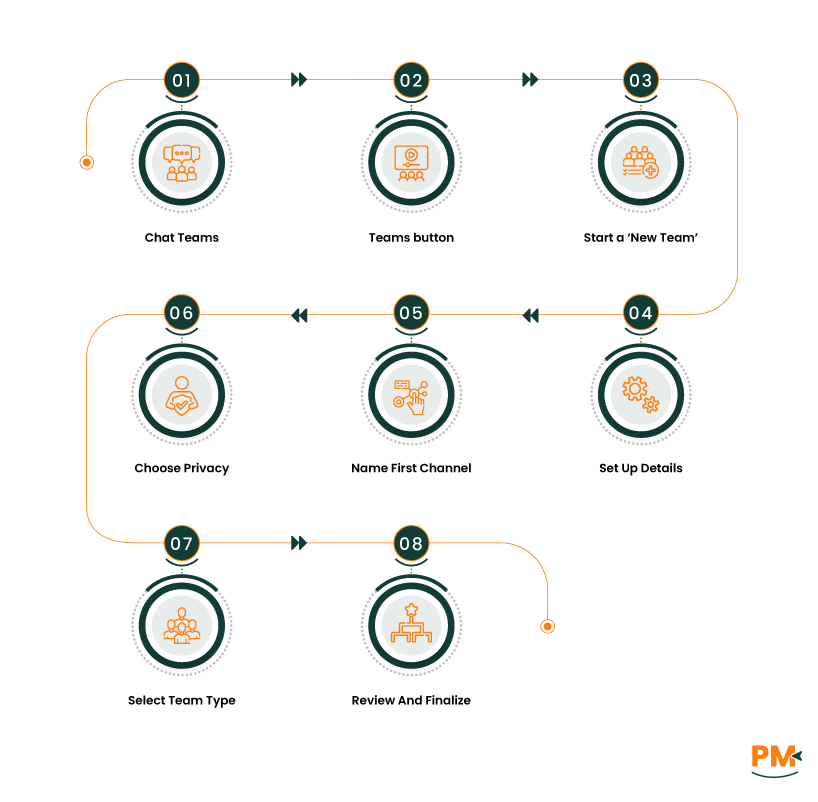
- Open the ‘Chat Teams’ tab
- On the left side of the app, click the ‘Chat Teams’ tab icon
- If you're using the separate view, select the ‘Teams’ button instead
- Start a ‘New Team’
- Set up team details. Enter a team name and an optional description
- You can also name your first channel at this stage
- Choose team privacy and sensitivity
- Select the type of team: Private for limited access and focused communication. Public for open groups or organization-wide topics
- Finish creating the team. Review the setup and click Create to finalize your new team
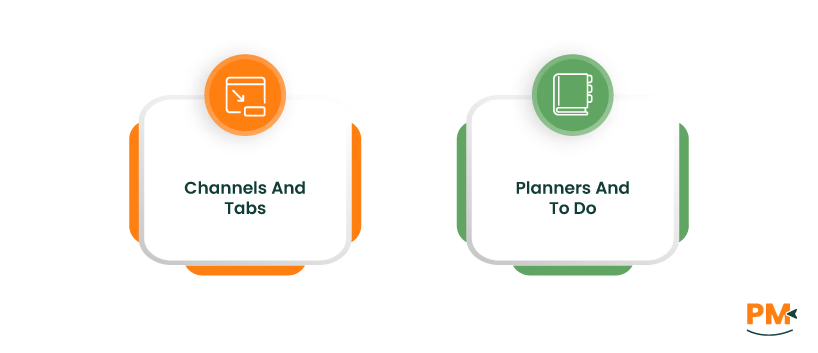
Utilizing Teams' key features helps keep everything organized, from tasks and files to meeting flows, allowing your team to stay focused and move forward without the usual friction.
Channels And Tabs
- Channels: Channels help organize conversations, files, and updates around specific project areas like planning, design, or client feedback. Each channel acts as a workspace with its conversations, shared files, and task views
- Tabs: Tabs let you add tools like Planner for task tracking, Files for document access, and OneNote for meeting notes or brainstorming. Custom tabs can also embed dashboards, third-party tools, or a Project timeline for deeper project visibility. Using tabs within channels keeps project resources easily accessible and reduces app switching
Task Management With Planner And To Do
Microsoft Planner offers a visual Kanban-style task board that can be pinned to any channel. Tasks can be assigned to individuals, organized by labeled and prioritized. Due dates, checklists, attachments, and comments help clarify responsibilities
To Do integrate personal task lists with Planner assignments, viewable under the ‘Tasks’ app in Teams. Team members can filter tasks by deadline, priority, or ownership for focused execution. Progress views like ‘Board, ‘Charts’ and ‘Schedule’ support ongoing tracking and workload balancing.
Document Collaboration
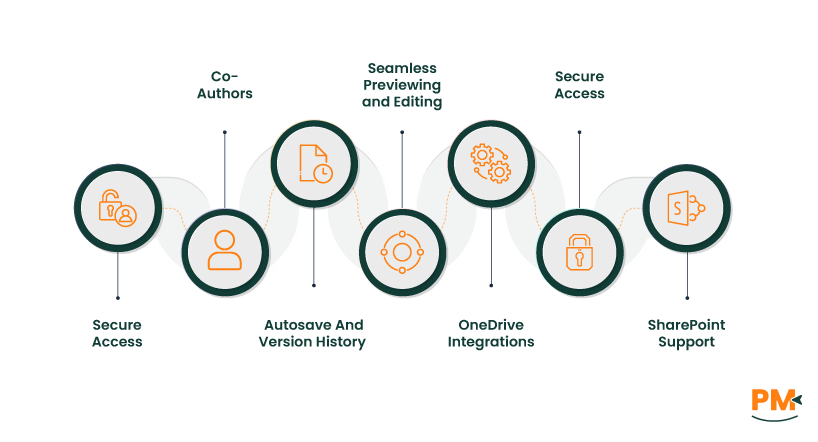
- Files shared in Teams channels are stored in SharePoint, ensuring secure, centralized access
- Multiple team members can co-author Word, Excel, or PowerPoint files in real time
- AutoSave and version history maintain a clear record of changes and eliminate version conflicts
- Files can be previewed, edited, and discussed directly within Teams without needing to open a separate app
- OneDrive integration makes it easy to upload, share, and link documents during chats or meetings
- Permission controls and metadata tagging via SharePoint support compliance and organization
Meetings And Video Conferencing
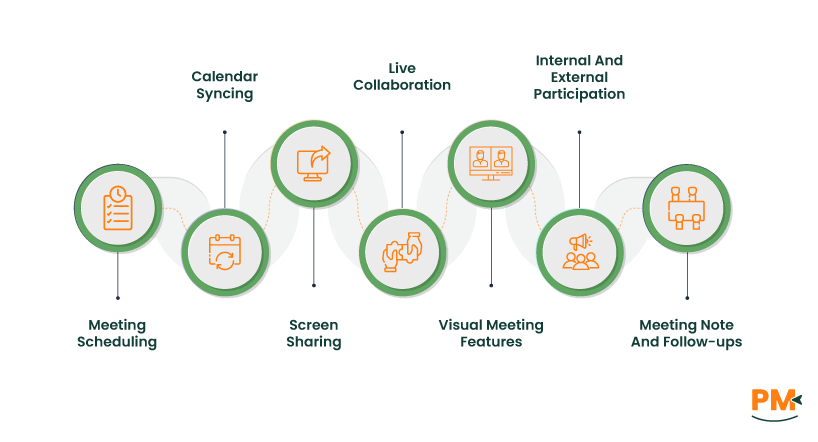
- Meetings can be scheduled from within Teams or Outlook, automatically syncing to calendars
- Video conferences support screen sharing, file presentation, and live collaboration
- Meeting recordings are saved to OneDrive or SharePoint and are accessible through the meeting chat or Files tab
- Features like background blur, breakout rooms, and live captions enhance communication
- Teams supports internal and guest participants, allowing easy collaboration with external partners
- Shared meeting notes and chat ensure follow-ups and decisions are captured for the team

For teams aiming to expand their workflows, project management with Microsoft Teams becomes even more effective with the right app integrations. These integrations not only reduce context-switching but also streamline project workflows by keeping all essential resources in one place.
Beyond Microsoft 365, third-party apps such as Trello, Miro, and Jira can be integrated into channels to manage tasks using custom workflows. These tools enable teams to define dependencies, automate repetitive tasks, and customize project views, which is particularly beneficial for agile or cross-functional teams.
Reporting tools like Power BI can be embedded to display dashboards that update in real time, helping stakeholders monitor KPIs and project performance without needing separate software. Similarly, integrating Forms allows teams to collect data or feedback directly within Teams.
By bringing these tools into a unified workspace, Teams reduces friction in collaboration, shortens feedback loops, and gives project managers a clear line of sight across all moving parts, making it far more than just a communication tool.
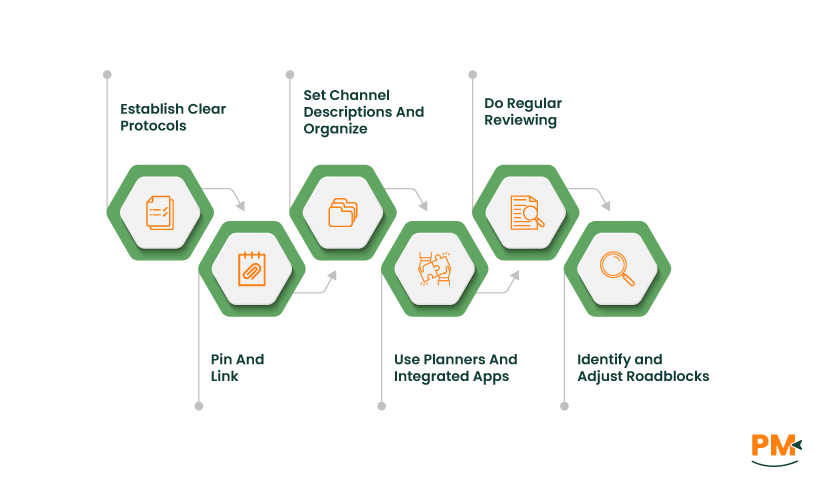
Establishing good practices is key to getting the most out of Microsoft Teams project management. A few practical strategies can go a long way in optimizing how your team works together within the platform.
- Start by establishing clear communication protocols. Define which conversations belong in channels versus private chats, and encourage team members to use @mentions thoughtfully
- Pinning key messages, linking reference documents, and setting channel descriptions can also help new or external contributors quickly get up to speed
- Organizing channels around distinct phases, functions, or workstreams, such as planning, development, or client feedback, keeps work segmented and easier to navigate
- Maintaining a consistent task management process using Planner or integrated apps ensures that team responsibilities stay visible and deadlines are not overlooked
- Regularly reviewing project progress either through weekly check-ins, status meetings, or built-in tools like Planner charts, helps identify roadblocks early and adjust plans as needed
- Designating owners for channels, meeting facilitators, or task reviewers creates a stronger sense of structure and avoids confusion when decisions need to be made
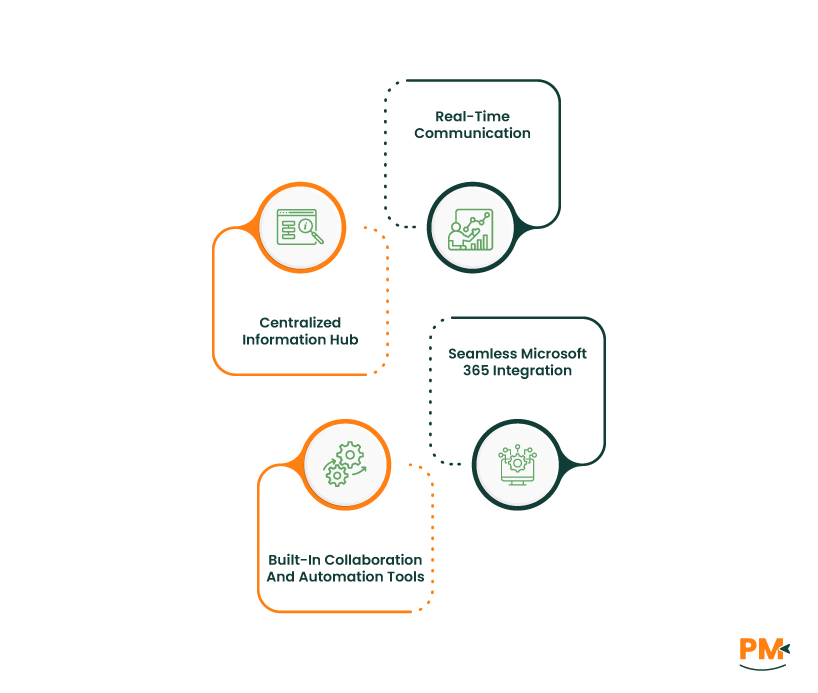
Learning how to use various Microsoft Teams for effective project management can unlock new strategies for planning and execution. Here are some of the key advantages that make it a preferred choice for project teams:
Real-Time Communication
Microsoft Teams facilitates immediate, transparent communication through chat, voice calls, and video meetings. Project teams can quickly clarify tasks, resolve issues, and make decisions without relying on long email threads or external apps. Features like @mentions, threaded conversations, and chat history ensure that essential updates remain visible and accessible throughout the project lifecycle.
Centralized Information Hub
By bringing together conversations, documents, tasks, and schedules within a single interface, Teams becomes a central workspace for all project activities. Files shared in channels are automatically saved to SharePoint, ensuring secure storage and easy access. This consolidation reduces the risk of information silos and ensures everyone on the team is working from the same source of truth.
Seamless Microsoft 365 Integration
Teams integrate natively with Microsoft 365 apps like Outlook, OneNote, Planner, SharePoint, Excel, and Project. This means that tasks created in Planner appear in Teams and To-Do, meetings scheduled in Outlook are synced to the Teams calendar, and files opened in Teams can be co-edited in Word or Excel.
Built-In Collaboration And Automation Tools
With access to Power Automate, Power BI, and third-party app connectors, Teams can be extended into a highly efficient, automated workspace. From automatic task assignments and alerts to real-time dashboards and reporting, these tools enhance project oversight and reduce manual workload.
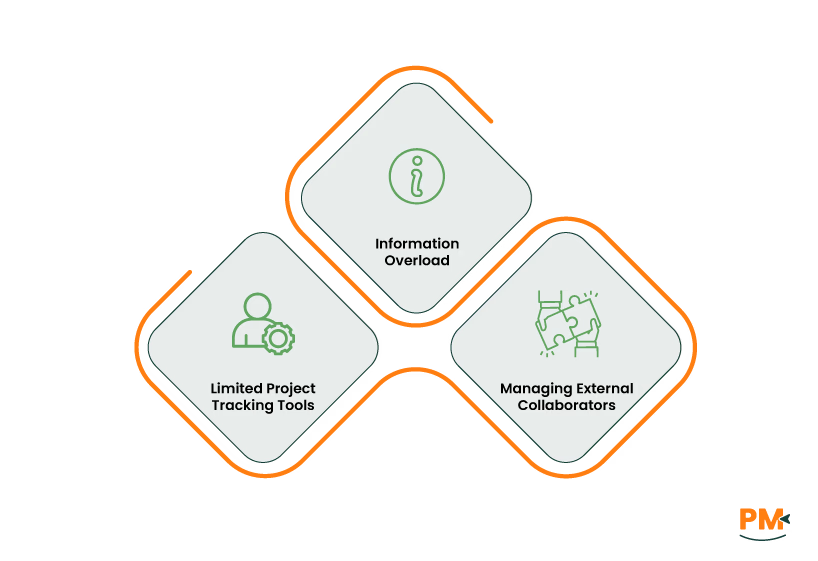
While Microsoft Teams offers a robust framework for managing projects, users may encounter certain limitations or difficulties during implementation. Recognizing these challenges early and applying targeted solutions can help teams maintain productivity and alignment.
Challenge: Information Overload
As project activity increases, channels can become cluttered with chat threads, file uploads, and notifications. This often leads to confusion, overlooked updates, or difficulty locating key information.
Solution:
Use naming conventions for channels and tabs to organize discussions by topic or phase. Pin important messages and documents and regularly archive inactive channels to ensure they are easily accessible. Encourage team members to use @mentions and tags selectively to reduce noise.
Challenge: Limited Project Tracking Tools
Teams do not offer built-in Gantt charts, baseline comparisons, or advanced timeline features, which can make it less ideal for complex project portfolios.
Solution:
Embed Microsoft Project for the web into Teams for timeline-based planning. Alternatively, integrate tools like ClickUp or Smartsheet for more advanced tracking features.
Challenge: Managing External Collaborators
Inviting vendors or clients into Teams without clear controls can pose security and communication risks.
Solution:
Use guest access cautiously with role-based permissions. Create separate private or shared channels for external users and restrict access to sensitive tabs or files. Review user permissions regularly.
Can Microsoft Teams replace traditional project management tools?
Microsoft Teams can serve as a central hub for communication, task coordination, and collaboration, especially when integrated with tools like Planner, Project for the web, and third-party apps. While it may not offer advanced project management features, it can effectively replace traditional tools for many small to mid-sized projects when properly configured.
How secure is project data within Microsoft Teams?
Microsoft’s enterprise-grade security framework protects project data in Microsoft Teams. Files are stored in SharePoint and OneDrive with encrypted data transfers, role-based access control, and compliance support for industry standards such as GDPR and HIPAA. Admins can also enforce data loss prevention policies and multifactor authentication to safeguard sensitive project content.
Is Microsoft Teams suitable for managing large-scale projects?
Yes, but with some planning. Teams can handle large-scale projects by structuring work into multiple teams and channels, using Planner for task management, and integrating reporting tools for real-time tracking. However, for complex projects requiring in-depth scheduling or portfolio oversight, pairing Teams with full-scale project management software is recommended.
Does Microsoft Teams have a project management tool?
Yes, Microsoft Teams includes several built-in and integrated tools that support project management. While it doesn't offer advanced features like native Gantt charts or portfolio views, it provides task tracking through Microsoft Planner, personal task organization via To Do, and seamless integration with Microsoft Project and third-party tools.
How to use Teams for project management?
To use Teams for project management, start by creating a dedicated Team with structured channels for each project phase or function. Add Planner tabs for task tracking, use OneNote for meeting notes, and organize files within SharePoint-backed folders. You can also embed dashboards, connect tools like Trello or Jira, and automate workflows using Power Automate.
How do I track project milestones in Microsoft Teams?
Milestones can be tracked using the Planner app by labeling tasks or creating milestone-specific buckets. For timeline views and dependency mapping, you can embed Microsoft Project for the web or integrate third-party tools that support Gantt charts. Additionally, Power BI dashboards can be used to monitor progress and key performance indicators across projects.