

Confluence is more than just a digital workspace—it's a hybrid wiki and collaborative project management hub that empowers teams to organize plans, share knowledge, and execute projects efficiently. Built by Atlassian, Confluence combines structured documentation with seamless communication, making it a powerful choice for teams that want visibility and collaboration in one place. Whether you're planning product launches, marketing campaigns, or internal operations, Confluence can be tailored to meet your needs.
It also provides a single source of truth for teams, helping eliminate silos that often derail project progress. By using Confluence project management features, organizations can improve workflow transparency and build repeatable processes that scale.
Confluence project management stands out because it centralizes project knowledge, bringing clarity and alignment to every team involved. Instead of scattered notes and fragmented tools, project managers get a unified space for documenting goals, assigning tasks, and tracking progress. Even more powerful is its integration with Jira, allowing seamless transitions between project documentation and issue tracking.
With Confluence for project management, teams enhance transparency, reduce unnecessary meetings, and stay aligned on outcomes. You can house everything—from high-level strategy to minute task updates—within structured, living documents. As a result, productivity rises and miscommunication drops.
This is especially beneficial for remote or hybrid teams who rely on asynchronous communication. Confluence provides built-in version control, edit histories, and user activity tracking, which together create a collaborative yet controlled project documentation environment.
The first step in using Confluence effectively is creating a dedicated space for each project. Spaces serve as the home for all your project documentation, communications, and assets.
Choose the Right Project Template
Confluence offers various pre-built templates to help you get started:
- Project Plan: Lay out goals, scope, milestones, and stakeholders
- Meeting Notes: Document key discussions and next steps
- Retrospective: Reflect on what worked and what can be improved
Additional templates such as Product Requirements, Decision Logs, and Action Items can be tailored to specific project methodologies like Agile or Waterfall.
Each template ensures consistency and saves setup time, especially for recurring project types.
Structure Your Space for Success

Within your project space:
- Create top-level pages for Roadmap, Timeline, Budget, and Stakeholders
- Nest sub-pages beneath relevant categories for tasks, decisions, and risks
- Use a consistent naming system to help with navigation
Consider applying visual page headers, emojis, or status lozenges to make pages easily scannable. You can also create navigation panels using the 'Children Display' or 'Table of Contents' macros for faster access to subpages.
This structure makes content easy to find and keeps your team focused on the next steps.

Using Comments, @Mentions & Task Assignments
Confluence enables real-time collaboration in the context of your project documentation. Team members can:
- Leave comments directly on pages for feedback or clarification
- Use @mentions to notify teammates and bring them into the conversation
- Create inline tasks (e. g. , //TODO) within pages and assign them to specific users
You can also track task status across multiple pages using the Task Report macro, allowing project managers to get an overview of what’s been completed and what’s pending.
These features foster a culture of accountability and ensure everyone knows their responsibilities.
Enhancing Engagement with Whiteboards and Decision Pages
Visual collaboration is vital for brainstorming and planning. With Confluence whiteboards, teams can:
- Sketch ideas in real time
- Build user journeys, wireframes, or architecture diagrams
For major project decisions, use Decision pages to:
- Record options considered
- Justify the final decision
- Provide links to supporting documents
This creates a transparent decision-making trail and keeps everyone informed.
Additionally, embedding media, tables, and draw. io diagrams within your whiteboard and decision pages adds depth and context to discussions and documentation.

Status Updates and Automatic Check-Ins
Confluence project tracking tools make it easy to provide regular updates without needing endless status meetings. You can:
- Create dedicated Status Update pages for weekly check-ins
- Use macros to highlight task owners, completion status, and blockers
The Team Calendars feature also syncs with events and milestones, ensuring nothing slips through the cracks.
Setting up recurring status update templates allows teams to provide structured reports that stakeholders can quickly review. These can include highlights, lowlights, and upcoming priorities.
Connecting Jira Issues and Epic Tracking
When Confluence is paired with Jira, your project tracking becomes even more powerful:
- Embed Jira issues directly into Confluence pages
- Link Confluence documentation to specific Jira epics or sprints
- View real-time progress from within your project wiki
This tight integration bridges planning and execution, making project management in Confluence especially appealing for agile teams.
You can also generate Jira charts or status dashboards within Confluence, helping visualize burndown progress or sprint health directly on your project overview page.
Building Dynamic Databases with Page Properties & Macros
Confluence allows you to turn regular pages into structured databases. Here’s how:
- Use Page Properties to define fields like Owner, Status, Due Date
- Tag each project page with these properties
- Use the Page Properties Report macro to pull these into summary tables
For example, create a "Project Dashboard" that auto-updates with all current projects, showing priority, status, and owner in one view.
This method makes it easier to sort and filter content by phase, priority, or team. Combined with label filters, you can generate dynamic lists for sprint planning or release tracking.
Using Templates for Consistency
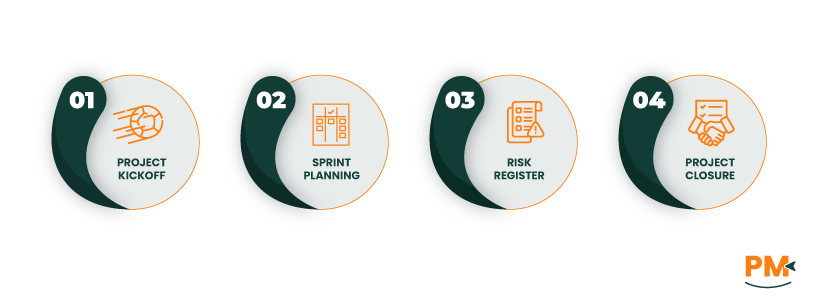
Consistency is crucial in large teams managing multiple projects. Confluence provides built-in templates and the option to create custom ones. Popular Confluence template examples include:
- Project Kickoff
- Sprint Planning
- Risk Register
- Project Closure
Using templates ensures each team follows a common format, reducing onboarding time and increasing content quality.
As your organization grows, you’ll likely juggle multiple projects at once. Confluence supports this through its flexible architecture.
Create a Project Overview Hub with:
- A summary table of all active projects (using macros)
- Filters for priority, department, or due date
- Links to each project's dedicated space
This gives stakeholders a bird's-eye view of what's in flight and who’s accountable.
Additionally, use space shortcuts and homepage banners to surface critical project updates or cross-functional dependencies. This helps senior managers stay informed without combing through individual spaces.
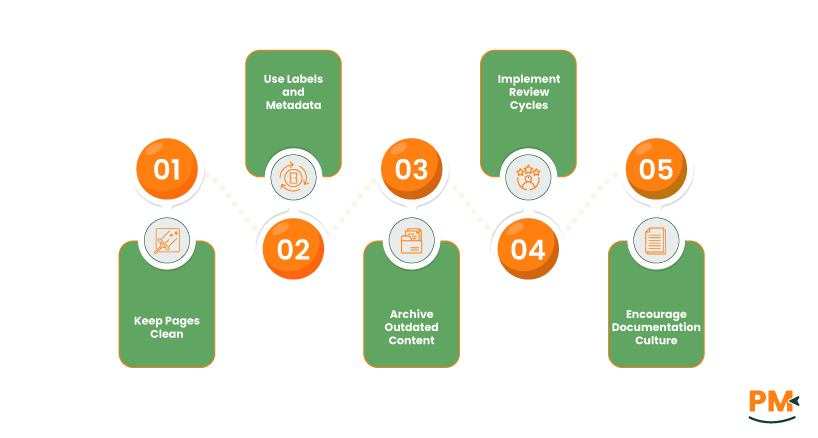
To ensure Confluence management remains efficient over time, follow these best practices:
- Keep Pages Clean: Use headings, tables, and sections to break up content. Avoid clutter
- Use Labels and Metadata: Add tags to improve searchability and create dynamic content filters
- Archive Outdated Content: Regularly move or delete old project pages to reduce noise
- Implement Review Cycles: Assign page owners and set periodic reminders to verify accuracy
- Encourage Documentation Culture: Make it a habit to record meetings, changes, and learnings
Can Confluence replace a dedicated PM tool?
While Confluence isn’t a full-fledged project management platform like Asana or Monday. com, it can replace many core functions, especially when paired with Jira. It excels at documentation, communication, and collaboration.
Is it possible to manage tasks and projects entirely within Confluence?
Yes. You can assign tasks, track progress, and document decisions entirely in Confluence. For advanced workflows or ticket tracking, integrating Jira is recommended.
How does Confluence integrate with Jira?
You can embed Jira issues, epics, and sprints directly into Confluence pages. Updates in Jira are reflected live in Confluence, keeping documentation and task tracking in sync.
Are templates and automation available in Confluence?
Yes. Confluence includes many templates for project management, and admins can create custom templates. While automation is limited compared to Jira, tools like Automation Confluence and third-party apps enhance its capabilities.
Can Confluence handle Agile and Waterfall methodologies?
Absolutely. Using Confluence for project management works well in both Agile and Waterfall environments. Agile teams benefit from sprint planning templates and Jira integration, while Waterfall teams appreciate the structured documentation.