
Jira is one of the most powerful and flexible platforms available for planning, tracking, and delivering projects. Whether you're managing a software release, marketing campaign, or internal workflow, Jira's modular design makes it adaptable to nearly any team structure or methodology.
For beginners, however, Jira can feel overwhelming. This Jira tutorial for beginners is designed to demystify the platform. You’ll learn how to set up your first project, understand key features, and apply best practices for effective Jira project management.
Jira offers multiple project templates that align with different team workflows. When you click "Create Project," you'll be prompted to choose from several options:
- Scrum: For teams that plan work in sprints and follow Agile methodologies
- Kanban: For teams that manage continuous work without fixed iterations
- Bug Tracking: Ideal for software QA teams managing reported issues
Choosing the right template matters because it sets up the workflow structure, issue types, and boards your team will use by default. For example, Scrum templates come with sprints and backlog views, while Kanban offers a more flexible board with work-in-progress (WIP) limits.
You can also customize the project name, key, and permissions. Assigning roles like Project Admin and Viewer ensures controlled access and accountability.
At the heart of every Jira project management tool are its issue types and workflows.
Common Issue Types:
- Task: A general to-do or work item
- Story: Typically used in Agile environments to represent user functionality
- Bug: A defect or problem that needs fixing
- Epic: A larger body of work broken down into smaller tasks or stories
Customizing Workflows:
Each issue type follows a workflow that represents its lifecycle (e. g. , To Do → In Progress → Done). Admins can customize workflows by adding statuses (like "In Review" or "QA Testing") and transitions.
This allows you to mirror your real-life processes inside Jira, which is a key strength of the Jira project management ecosystem.
One of the essential skills in Jira project management is organizing a clear and actionable backlog.
How to Build a Backlog:
- Navigate to your project and switch to the Backlog view (for Scrum templates)
- Create issues directly in the backlog with descriptions, assignees, and due dates
- Use labels and custom fields (like priority or estimated effort) to add context
Backlog Grooming Benefits:
- Removes outdated or irrelevant tasks
- Clarifies requirements before sprint planning
- Keeps the team focused on what matters
Regular backlog grooming is especially important in Agile environments, and this Jira tutorial will help teams avoid the chaos of an unstructured task list.
Boards are a visual representation of your team’s work.
Scrum Boards:
Scrum boards organize work by sprints. Each sprint has a defined duration (usually 1-2 weeks), and tasks are moved across columns (To Do, In Progress, Done) during daily standups and team check-ins.
Kanban Boards:
Kanban boards manage continuous flow without sprint constraints. You can set WIP limits to prevent bottlenecks and visually spot workflow inefficiencies.
Both board types support drag-and-drop functionality, quick filters, and swimlanes—making them ideal tools for jira basics and everyday task tracking.
For long-term planning, epics and roadmaps are critical features in any Jira project management tutorial.
Epics:
Epics group related issues under a common objective. For example, a "Website Redesign" epic might include multiple stories like "Update Navigation" and "Improve Mobile Responsiveness."
Roadmaps:
The roadmap view shows a timeline of epics and tasks across weeks or months. It helps:
- Track deadlines and dependencies
- Communicate high-level plans to stakeholders
- Adjust priorities over time
These features give product managers and project leads a bird’s-eye view of how everything connects—a reason why Jira project management tools are trusted across industries.
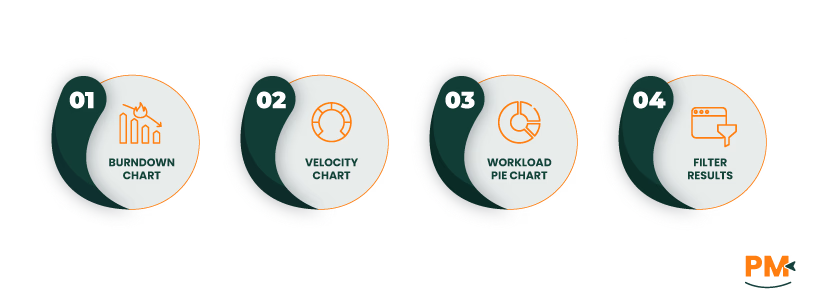
Dashboards give users personalized views into project health and team performance.
Widgets You Can Add:
- Burndown Chart: Tracks sprint progress and remaining work
- Velocity Chart: Shows completed story points per sprint
- Workload Pie Chart: Displays task distribution among team members
- Filter Results: Display custom query results like "All Bugs Due This Week”
Each team member can configure their dashboard using gadgets and filters, which makes reporting easy and highly customizable.
Automation helps reduce manual effort and ensures consistency. In Jira basics, setting up automation is as simple as defining triggers, conditions, and actions.
Example Rules:
- Automatically assign a task when it's moved to "In Progress"
- Send an email reminder if an issue remains unresolved for 7 days
- Transition an issue to "Done" when all sub-tasks are complete
This capability makes Jira a true project management tool, streamlining repetitive tasks and freeing up time for real work.
What is Jira used for beyond tracking tasks? It’s also a hub that connects with dozens of other tools.
Popular Integrations:
- Confluence: Link documentation and meeting notes
- Slack: Receive updates and assign issues via chat
- GitHub/GitLab/Bitbucket: Track code commits and pull requests linked to Jira issues
- Trello: Ideal for cross-functional teams working on lighter tasks
The Atlassian Marketplace also offers thousands of add-ons to expand Jira’s capabilities even further, reinforcing why it’s a preferred Jira project management tool.
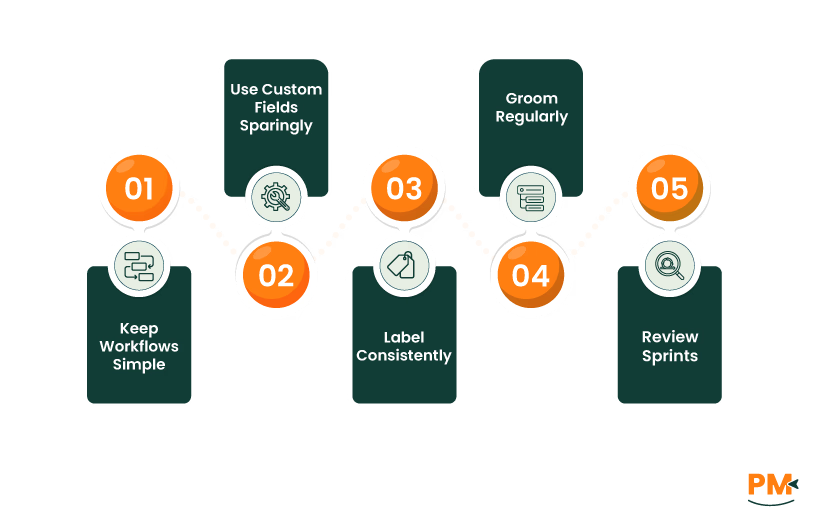
If you're just starting out, keep these tips in mind:
- Keep workflows simple: Avoid unnecessary statuses unless truly needed. Complex workflows may seem thorough, but they can slow down adoption and create bottlenecks.
- Use custom fields sparingly: Too many fields can slow down your process. Only include fields that provide real value to reporting or tracking.
- Label consistently: Agree on tags like "UI," "Backend," or "Marketing" and stick to them. Consistent labeling improves searchability and reporting across projects.
- Groom regularly: Set weekly or bi-weekly backlog grooming sessions. This keeps your backlog clean, relevant, and aligned with sprint goals.
- Review sprints: Sprint reviews and retrospectives help improve over time. They promote continuous learning and give teams space to adapt and evolve.
These best practices will make your Jira environment efficient, maintainable, and scalable—especially as your team and projects grow.
Like any powerful tool, Jira has a learning curve. Here are common pitfalls—and how to avoid them:
- Over-customization: Resist the urge to add too many statuses, transitions, or custom fields. Overcomplicated workflows confuse users and slow things down. Start simple and scale gradually.
- Dashboard clutter: Keep dashboards minimal and purposeful. Focus on widgets that highlight sprint progress, team workload, and issue flow. Too much data creates noise.
- Unmanaged backlog: A messy backlog leads to poor sprint planning. Groom it often. Regular backlog refinement helps avoid duplication and keeps priorities clear.
- Inconsistent issue creation: Use templates and training to promote uniformity. Standardized formats improve clarity, searchability, and handoffs between teams.
- Lack of role clarity: Without defined roles like Product Owner or Project Lead, accountability and permissions can get messy. Set these early to avoid confusion.
Solving these issues early prevents long-term inefficiencies and frustration. With a clean setup, Jira becomes a powerful ally—not a source of stress.
How do I start using Jira for my first project?
Go to "Projects" → "Create Project," choose a template (Scrum or Kanban), set project settings, and invite team members. This Jira tutorial for beginners provides all the key steps.
What’s the difference between Scrum and Kanban in Jira?
Scrum uses sprints and is best for iterative work. Kanban is continuous and ideal for ongoing tasks. Both are supported by Jira's boards and reporting tools.
Can I customize workflows without admin help?
You can make minor changes if you have project admin rights. For full workflow customizations, you’ll need Jira admin access.
How can I track progress across multiple projects?
Use advanced dashboards, filters, or Jira Portfolio (now called Advanced Roadmaps) to visualize multiple projects in one place.
Is Jira suitable for non-technical teams?
Absolutely. Marketing, HR, design, and operations teams all use Jira. The platform is highly customizable and not limited to software development.