
Monday. com is a versatile, cloud-based Work Operating System (Work OS) that enables teams to plan, execute, and track projects efficiently. As a highly customizable project management software, it provides an intuitive interface with robust collaboration tools, making it suitable for a wide range of industries and team sizes. In this guide, we’ll explore how to use Monday. com effectively for project management – from setting up your workspace and visualizing workflows to leveraging integrations, automations, and best practices.
By following these Monday. com tips and tricks, you can maximize productivity and ensure your team gets the most out of this work management platform.
Before diving into managing projects, it’s important to tailor your Monday. com workspace to your team’s needs. That means creating boards (the basic unit of work in Monday. com) and configuring them with the right templates, columns, and groups that match your project management workflow. Here is how:
Creating Boards And Choosing Templates
You can create a new board from scratch or save time with one of 200+ pre-built, fully customizable templates from Monday’s template library. These templates cater to various use cases—like project plans, marketing campaigns, sales pipelines, sprint planning, and more.
How to create a new board: To set up a board from scratch, follow these steps:
- Click ‘+ Add’ in the left panel of your main workspace
- Select ‘New Board’, then enter a name for your board
- Choose the board’s privacy level (Main, Shareable, or Private)
- Define what you want to call the items (tasks) on your board (e. g. ‘tasks’, ‘tickets’, ‘projects’) – this helps tailor the terminology to your workflow
After creating a board, you can either apply a template or add components manually. To start with a template, open the Template Center, browse by category (like Marketing, Project Management, or Design), and then create a board with a ready-made structure. Monday’s Template Center offers workflows for various industries and teams. Choosing a relevant template—such as Campaign Tracking for marketing or Sprint Planning for software development—ensures your board has the right setup from the beginning.
Customizing Columns And Groups
In Monday. com, you can customize boards by adding columns and grouping tasks to match your team’s workflow.
- To Add Columns: Click the ‘+’ icon at the top of your board and select a column type. Common options include Status, Priority, Due Date, Assignee, or custom fields like numbers, dropdowns, or timelines. Columns let you track the exact details your team needs for each task
- To Create Groups: Click ‘Add Group’ at the top of your board. Groups help categorize tasks by stages, project phases, teams, or any logical breakdown—such as ‘Backlog,’ ‘In Progress,’ and ‘Done’
Customizing columns and groups ensures your board mirrors your team’s workflow and uses terminology everyone understands. This setup keeps information clear, organized, and easy to manage for your entire team.
One of Monday’s strengths is the ability to visualize your work in multiple ways. Beyond the default table view, it supports Kanban boards, calendars, timelines, Gantt charts, and more—so you can view project data from different angles. These views help teams quickly see project status, deadlines, and dependencies. In fact, Monday offers 20+ board views and dashboard widgets to present data in the most useful format.
Let’s look at a few popular views and how they support your workflow:
Kanban And Calendar Views
The software provides two key views to manage work effectively.
- Kanban View: It helps track task progress by moving tasks through different stages—like ‘To Do,’ ‘In Progress,’ and ‘Done’—making it easy to monitor workflow at a glance
- Calendar View: This view helps with scheduling by showing tasks on a calendar, allowing teams to plan work, manage deadlines, and adjust schedules as needed
Gantt And Timeline Views
The platform’s Gantt and Timeline views make it easier to plan projects, set dependencies, and track deadlines.
- Gantt View: Maps out project timelines, connects tasks with dependencies, and monitors progress across the entire project
- Timeline View: Displays tasks in a linear timeline, helping teams schedule work, manage overlapping tasks, and stay on top of deadlines
Seamless collaboration in Monday. com comes down to two essential tools: the Updates section for in-platform discussion and file sharing, and integrations with communication apps to bridge workflows across platforms.
Utilizing The Updates Section
The Updates section on each task or board acts as a centralized communication hub. Team members can comment directly on tasks, @mention colleagues, and attach files—ensuring all relevant discussion happens in context. This thread-like setup eliminates scattered emails and keeps everyone informed in real time. Whether broadcasting progress, asking a question, or providing files, the Updates section gathers everything in one accessible spot linked to the task itself.
Integrating With Communication Tools
Monday. com for project management smoothly integrates with Slack and Microsoft Teams to streamline updates across platforms. With Slack, boards automatically notify channels about task changes—new tasks, status updates, and completions—so no one misses important updates. In Microsoft Teams, changes to items (new items or updates) can instantly generate messages in Teams channels, keeping both platforms in sync and teams aligned.
With automations, you can configure Monday. com to handle routine work—like sending reminders, moving items, or updating statuses—based on triggers and conditions. This not only saves time but also reduces the chance of human error, such as forgetting to notify someone or update a field.
Let’s look at how to set up automation rules and use the pre-built automation recipes in Monday. com:
Setting Up Automation Rules
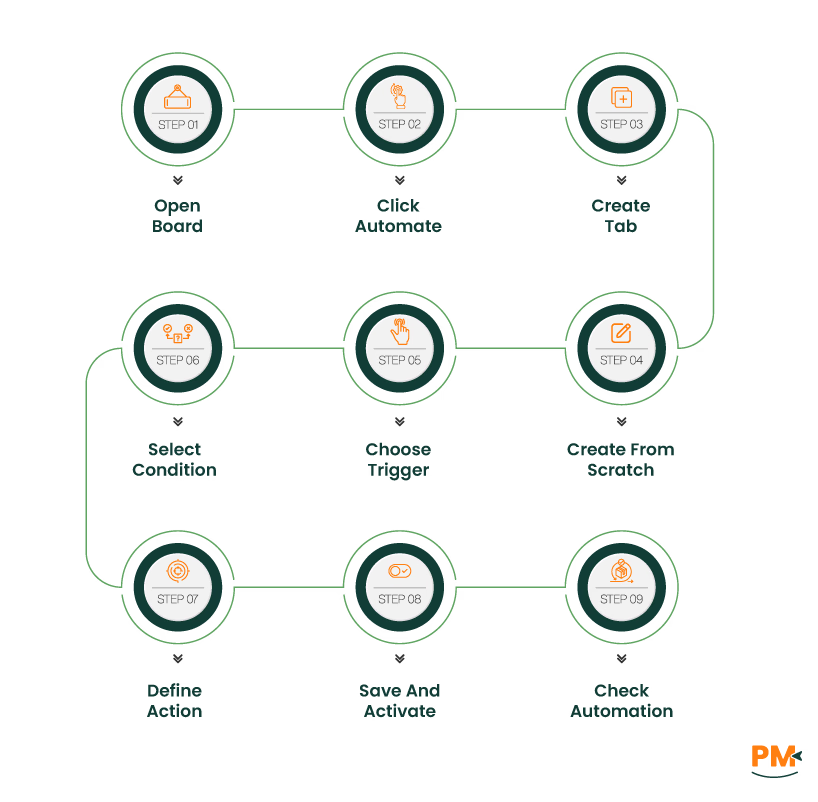
Automation rules in Monday. com help streamline your workflow by automatically triggering actions when specific conditions are met—like status changes, approaching deadlines, or new item creation. Here’s how to set them up effectively:
- Open your board and click the ‘Automate’ button (lightning bolt icon) in the top-right corner
- Select the Create tab and choose ‘Create from scratch’
- Choose a Trigger — the event that activates the automation, such as:
- When status changes to ‘Done’
- When due date arrives
- When a new item is created
- When a column value changes
- Select a Condition which is optional. You can refine your automation by adding conditions — for example, trigger only if the status is ‘Working on it’
- Define the Action — what should happen once the trigger (and conditions) are met, like:
- Sending a notification to a user or team
- Changing a status (e. g. , move to ‘In Review’)
- Assigning a person automatically
- Moving an item to another group or board
- Creating a new item
- Save and activate your automation. It’s a good practice to check if the automation works as intended after setting it up.
Utilizing Pre-Built Automation Recipes
You don’t have to build every automation from scratch—Monday. com offers a gallery of pre-built automation recipes for common use cases. These templates of triggers and actions can be quickly enabled and customized for your board. In the Automations Center, you’ll find categories like Recurring Tasks, Status Changes, Due Date Reminders, and Dependencies.
Examples include:
- ‘When Status changes to Done, notify [Person]’ — simply select the status and person, and activate
- ‘Every Monday at 9:00, create an item’ — perfect for recurring tasks or reports
Each recipe combines a predefined trigger, an optional condition, and an action. By using these pre-built recipes, you reduce manual work and let Monday. com handle routine tasks, so your team can focus on what matters most.
Keeping track of project progress and team productivity is key for any project manager. Monday. com’s dashboards and reports pull data from your boards to give a high-level view of key metrics like task status and team workload.
Below, we’ll show how to use these tools to monitor performance, build custom dashboards, and generate reports for actionable insights.
Building Custom Dashboards
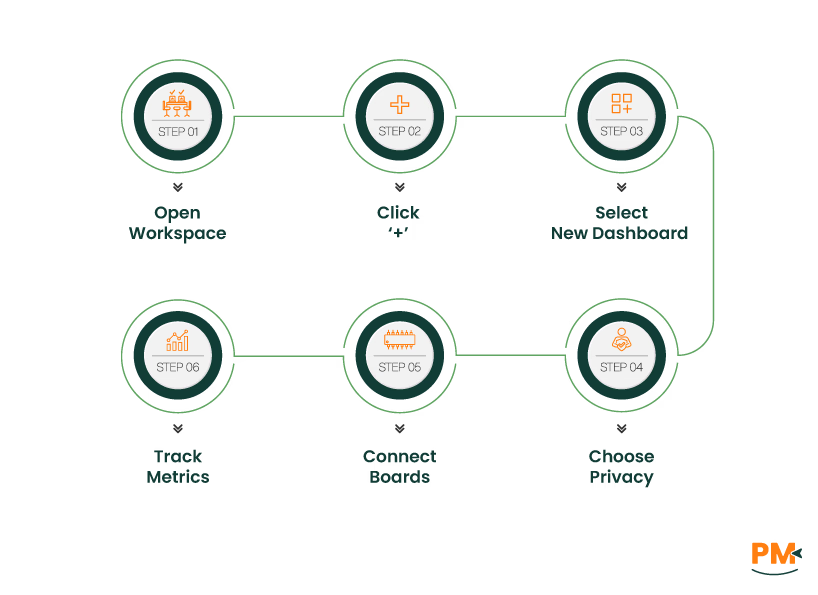
These dashboards let you centralize data from multiple boards into one high-level view, making it easier to monitor project statuses, team workloads, and key performance indicators (KPIs). They are fully customizable, allowing you to track the information that matters most to your team.
To create a dashboard:
- Open your workspace and click the ‘+’ icon below the workspace name, then select ‘New Dashboard’
- Choose whether the dashboard will be public (visible to everyone) or private (shared only with invited members)
- Connect the boards you want to pull data from — you can select groups from multiple boards, allowing you to track cross-project metrics in one place
Once your dashboard is set up, add widgets like the Battery, Workload, or Chart widgets to track progress, workload, and KPIs. You can add up to 30 widgets (excluding text widgets) and apply filters by board, group, or column for a focused view.
Generating Reports For Insights
To generate reports that provide insights into project timelines, resource allocation, and task completion, Monday. com offers several built-in tools. You can track project timelines using Timeline or Calendar Widgets on dashboards or visualize milestones with Chart Views. For monitoring resource allocation, use the Workload Widget or apply Advanced Filters to check assignments and workloads across teams. To measure task completion rates, tools like the Battery Widget, Chart Views, or Search Everything help you analyze progress and identify pending tasks. Together, these reports give you a real-time, data-driven overview to support informed decisions and efficient project management.
To truly get the most out of the platform, it’s important to follow some key Monday. com best practices. These help teams use the tool efficiently and ensure project data remains reliable.
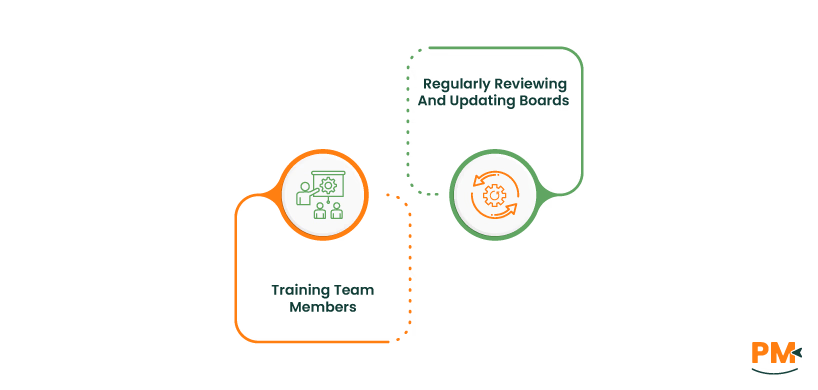
Regularly Reviewing And Updating Boards
For Monday. com to stay effective, teams need to keep boards current. This means regularly updating task statuses, adjusting timelines, and adding notes or files. Managers should review boards weekly to clean up completed items, ensure tasks have owners and deadlines, and confirm statuses are accurate. Regular updates not only keep the board useful but also ensure dashboards and reports provide trustworthy insights.
Training Team Members
Though Monday. com is user-friendly, training ensures better adoption and use. Start with onboarding sessions or Monday. com Academy tutorials, covering basics like updating items, adding comments, and tracking tasks. Gradually introduce advanced features tailored to your team’s needs. Appoint power users to assist others and share tips. Provide quick reference materials and encourage exploration. Integrate Monday. com into daily processes—like updating boards during meetings—to make it a central hub.
Can Monday. com project management software integrates with other tools?
Yes, the software connects with tools like Slack, Teams, Outlook, Jira, Zoom, and more via its Integration Center.
Is Monday. com suitable for Agile project management?
Yes, it supports Agile workflows like Scrum and Kanban with customizable boards and dedicated Agile features.
How secure is data on Monday. com?
The platform offers enterprise-grade security, GDPR compliance, encryption, and admin controls to protect your data.
Does Monday. com offer mobile access?
Yes, it has iOS and Android apps for updating boards, tracking tasks, and communicating on the go.
Can I customize Monday. com project management to fit my team’s workflow?
Yes, this system is fully customizable—boards, columns, views, and automations can all be tailored to your process.