
Notion is a versatile productivity platform that consolidates planning, execution, and documentation into a single structured workspace. Its modular design supports task tracking, database views, and collaborative workflows.
Using Notion project management (PM) tool, teams can define goals, manage timelines, and automate processes without relying on external tools or technical setup. The platform’s flexibility suits both structured and dynamic project environments.
This guide outlines how to use Notion for project management to help teams reduce friction, improve coordination, and maintain operational clarity.
Notion provides a flexible environment for managing projects through customizable pages, databases, and collaborative tools. To begin, users must create a workspace, configure access, and explore available templates to structure their workflows effectively.
Creating Your Notion Workspace
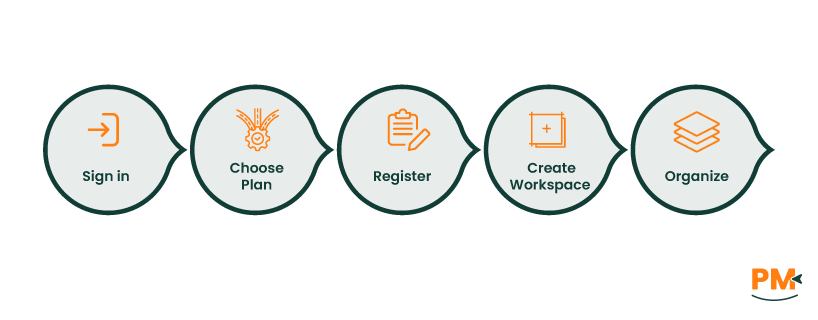
To set up a workspace:
- Visit Notion’s homepage and sign up using an email address or single sign-on options
- Choose between the Free, Plus, Business, or Enterprise plans based on team size and feature needs. Each plan offers varying levels of collaboration, admin controls, and advanced permissions
- Once registered, users can create a workspace from the sidebar and begin organizing pages, databases, and dashboards. Workspaces serve as the central hub for all project-related content and collaboration
Exploring Notion Templates
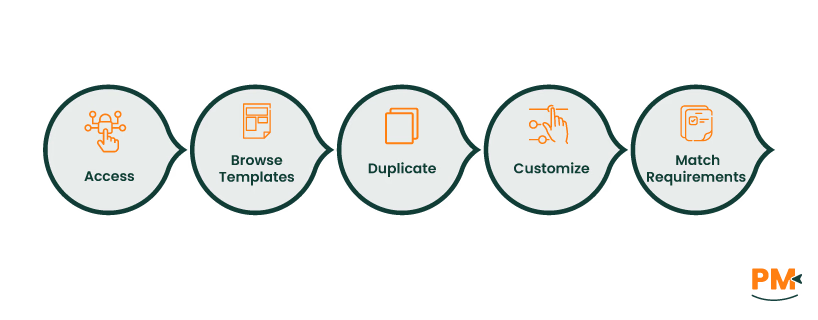
To accelerate setup:
- Access the Notion template gallery to browse over 30,000 free and premium templates
- Use filters to locate templates for project trackers, to-do lists, roadmaps, and team dashboards
- Templates can be duplicated directly into a workspace and customized to match specific project requirements.
Templates are categorized by use case, including ‘Personal Productivity’, ‘Roadmaps & Calendars’, and ‘Team Collaboration’, making it easier to find relevant structures for project management.
The Notion project management tool enables structured project management through customizable pages and databases. Users can centralize tasks, timelines, and documentation while maintaining flexibility across teams and workflows. Here is how it enables it all:
Building Project Pages And Databases
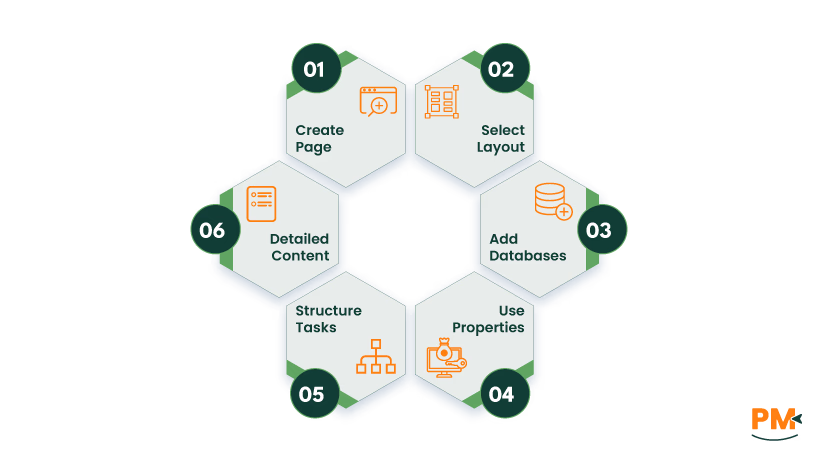
To organize projects while using Notion for project management, follow these steps:
- Create a new page and select a layout (e. g. , table, board, calendar) using the / command
- Add an inline database or full-page database to track tasks, deadlines, and milestones
- Use properties such as ‘Status’, ‘Due Date’, ‘Assignee’, and ‘Priority’ to structure task data
- Each row in a database is a Notion page, allowing detailed content like notes, attachments, and sub-tasks
Utilizing Linked Databases
To maintain consistency across pages:
- Use the /linked command to create a ‘Linked Database’ view on any page
- Select an existing database as the source and apply filters, sorts, or custom views
- Linked databases reflect real-time updates from the source while allowing for independent display settings
This feature supports dashboards, cross-functional views, and centralized reporting.
Notion project management software offers multiple visualization tools to help teams manage tasks, timelines, and deliverables with clarity. These views support both granular task tracking and high-level planning across projects.
Kanban Boards And Calendar Views
- Kanban Boards: Use the /board command to create a board view from a database. Tasks are organized into columns such as ‘To Do,’ ‘In Progress,’ and ‘Done,’ allowing drag-and-drop progression tracking. Each card can include assignees, due dates, and subpages for detailed task documentation
- Calendar Views: Convert any database into a calendar view to visualize tasks by due date. This is useful for scheduling, deadline management, and identifying workload distribution across time
Timeline And Gantt Charts
- Timeline View: Notion’s timeline view displays tasks along a horizontal timeline, showing start and end dates. It supports filtering, grouping, and zoom levels (hourly to yearly), making it suitable for sprint planning and milestone tracking
- Gantt Charts: Built using the timeline view, Gantt charts allow users to set task dependencies, visualize overlapping work, and monitor progress. Tasks can be adjusted by dragging their duration bars, and dependencies can be linked using custom properties
Notion PM tool supports asynchronous collaboration through integrated commenting, mentions, and granular sharing controls. These features help teams stay aligned without disrupting workflows.
Comments And Mentions
- Comments: Users can comment on specific blocks, text snippets, or entire pages. Comments appear inline or in a dedicated pane, supporting threaded discussions and emoji reactions
- @Mentions: Mention teammates using @name to notify them directly. Mentions can also reference pages or dates, helping link related content and trigger reminders
Sharing And Permissions
- Page Sharing: Pages can be shared with individuals, groups, or entire workspaces. Users can assign permission levels such as ‘Full Access,’ ‘Can Edit,’ ‘Can Comment,’ or ‘View Only’
- Permission Management: Subpages inherit parent permissions by default but can be customized. Workspace owners can restrict guest access, manage teamspace visibility, and set expiration for public links
Automation in Notion helps reduce manual effort and streamline repetitive tasks, improving overall project efficiency. With built-in automation tools and integrations, teams can trigger actions based on database changes and connect workflows across platforms.
Setting Up Notion Automations
Notion’s ‘Database Automations’ allow users to create ‘if this, then that’ rules directly within databases:
- Use the ‘Lightning bolt’ icon in a database to create a new automation
- Define a trigger, such as a new page being added or a property being edited (e. g. , status changed to ‘Done’)
- Set one or more actions, such as updating another property, sending a Slack notification, or creating a new page
Common use cases include:
- Automatically assigning team members when a task status changes
- Sending Slack alerts when a task is marked complete
- Updating related databases when a new entry is created
Integrating With Other Tools
Notion integrates with external platforms to extend automation capabilities:
- Slack: Receive notifications in Slack when tasks are updated or comments are added. You can also create Notion tasks directly from Slack messages
- Google Workspace: Sync calendars and documents to centralize scheduling and collaboration
- Zapier And Make: Use these no-code tools to connect Notion with hundreds of apps, enabling advanced workflows like syncing CRM data or automating email follow-ups

Monitoring progress is essential for keeping projects on track. Notion offers flexible tools to visualize performance and analyze outcomes.
Dashboards And Reporting
Create dashboards using linked databases and filtered views:
- Use ‘Board,’ ‘Table,’ or ‘Timeline’ views to display tasks grouped by status, priority, or assignee
- Add progress bars using formulas and rollups to show task completion rates
- Embed charts and visualizations using third-party tools like Superchart or Chartbrick
Dashboards can include:
- Project status summaries
- Weekly task completion metrics
- Team workload distribution
Time Tracking
Notion supports time tracking through:
- Date properties with start and end times
- Formula fields to calculate duration
- Rollups to aggregate time across tasks or projects
For advanced tracking:
- Use templates like Notion Time Tracker by Easlo
- Integrate with tools like Jira, Google Drive, and Slack for quick work reporting
Enhance your Notion workspace with strategic configurations and reusable components.
Utilizing Templates
Notion’s Template Gallery offers pre-built layouts for:
- Agile sprints
- Marketing campaigns
- Product roadmaps
- Client portals
Templates save setup time and ensure consistency across teams. You can also duplicate templates from creators or build your own for recurring workflows.
Implementing Custom Fields
Customize databases with tailored properties to match your team’s processes, using Notion for project management:
- Use Select, Multi-select, and Status fields for categorization
- Add Formula fields for calculations like priority scores or effort estimates
- Create Relations and Rollups to link tasks with projects, clients, or milestones
For example:
- A ‘RICE Score’ formula can prioritize tasks based on Reach, Impact, Confidence, and Effort
- A ‘Billable Hours’ field can calculate earnings based on tracked time and hourly rate
Is Notion suitable for Agile project management?
Yes. Notion supports Agile workflows through templates for sprints, Kanban boards, and backlog tracking.
Can I track project budgets in Notion?
Yes. Budget tracking is possible using finance templates and custom databases. Notion’s Budgets Template Gallery includes tools for expense tracking, monthly caps, and financial summaries.
Does Notion offer mobile access?
Yes. Notion is available on iOS and Android, allowing users to read, edit, and comment on content via the mobile app.
How secure is my data in Notion?
Notion uses AES-256 encryption at rest and TLS 1.2+ encryption in transit, hosted on Amazon Web Services (AWS) for physical and infrastructure security. It supports multi-factor authentication (MFA), access controls, and automated backups.
Is there a learning curve for new users?
Yes. Notion’s flexibility and modular design can be overwhelming initially. New users often face challenges understanding blocks, databases, and page hierarchies, but starting with templates and simple projects helps ease adoption.
Is Notion a project management tool?
Yes. Notion is an all-in-one workspace that includes project management features like task tracking, Kanban boards, timelines, and collaborative databases.
Is Notion good for project management?
Notion is effective for individuals and small teams managing tasks, documents, and workflows, though it may lack advanced features needed by larger organizations.