

Looking for a flexible, open-source tool to manage your projects more efficiently? Redmine might be exactly what you need. It is a powerful, open-source project management tool designed for teams that need flexibility and control. The tool excels in issue tracking, time management, and team collaboration, making it an ideal choice among agile and traditional project teams.
It is trusted by developers, operations teams, marketers, and cross-functional departments looking for issue tracking, time logging, and team collaboration in a centralized system.
Redmine offers a comprehensive suite of features designed to accommodate a wide variety of project workflows and organizational structures:
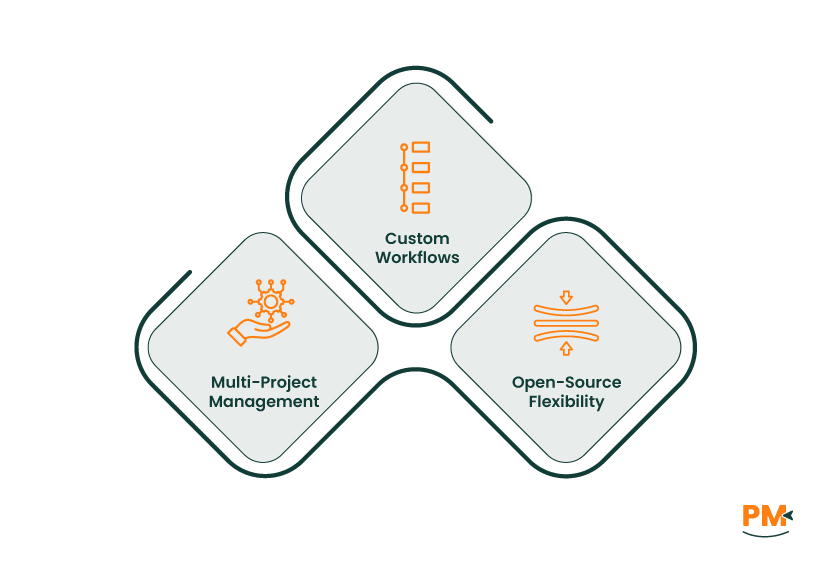
- Multi-Project Management: The platform manages multiple projects, organizes work streams, and maintains centralized control and visibility across all projects. This makes it easy to juggle internal and client-facing initiatives without confusion
- Custom Workflows: Redmine enables the design of unique issue lifecycles tailored to team-specific processes. Organizations can define custom statuses, transitions, and rules to align with Agile, Waterfall, or hybrid methodologies
- Open-Source Flexibility: This tool offers control over the system through open-source architecture. It can be modified, extended, or integrated with third-party applications, eliminating reliance on proprietary platforms
Implementing Redmine begins with choosing between two deployment options: a self-hosted instance or a cloud-based solution.
Self-Hosted Installation
Self-hosting Redmine requires a server running Linux, Windows, or macOS with Ruby 2.7 or higher, a database system (MySQL, PostgreSQL, or SQLite), and a web server like Apache or Nginx.
Setup Steps:
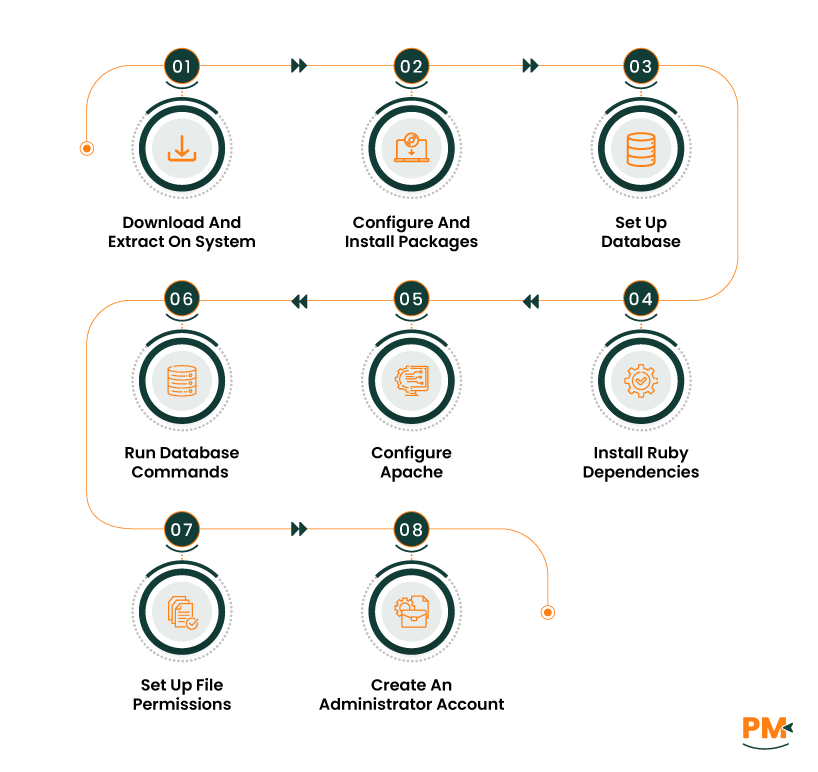
- Download a released package and extract it to an appropriate destination on your system
- Configure the server environment, install required packages, set up a database, configure the database connection, install Ruby dependencies, and configure Apache for web access
- Run database migration commands
- Set up file permissions for uploads and logs
- Create an administrator account through the setup wizard
Cloud-Based Redmine
Cloud-based options handle server maintenance, security updates, and backups automatically, allowing you to focus on project management rather than system administration.
Installation Steps:
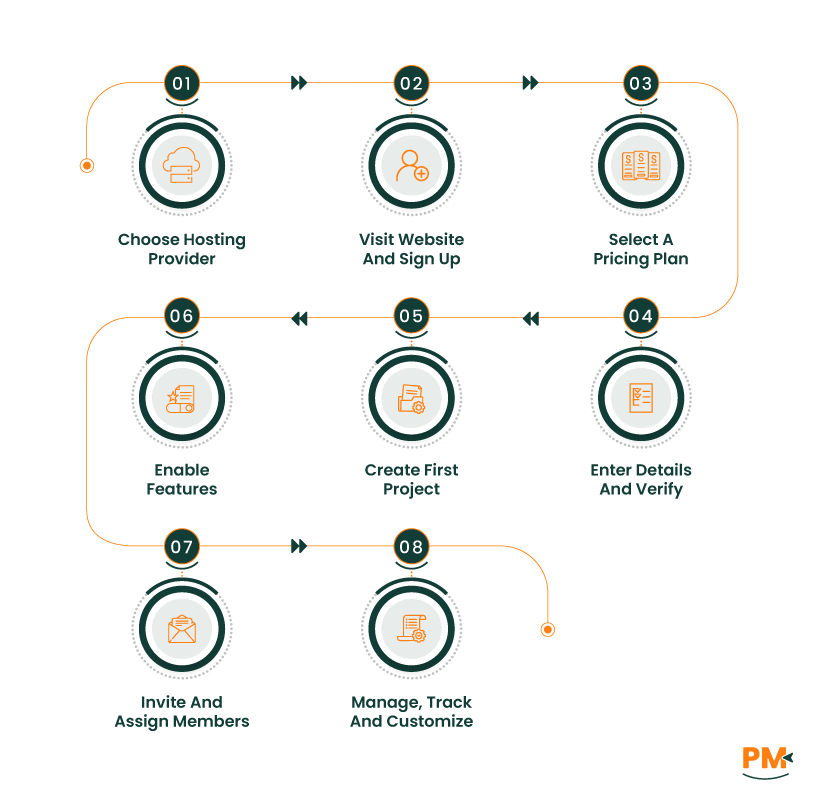
- Choose a Redmine hosting provider like Planio, Easy Redmine, RedmineUP Cloud, or MyRedmine
- Visit the provider’s website and sign up for an account
- Select a pricing plan
- Enter your email, organization name, and password
- Check your email and click the verification link to activate your account
- Log in and complete the initial setup by choosing your language, time zone, and preferences
- Go to the ‘Projects’ section and create your first project
- Enable the features you need, such as Issues, Wiki, or Gantt
- Invite your team members by email and assign them roles
- Start managing tasks, tracking time, and customizing workflows
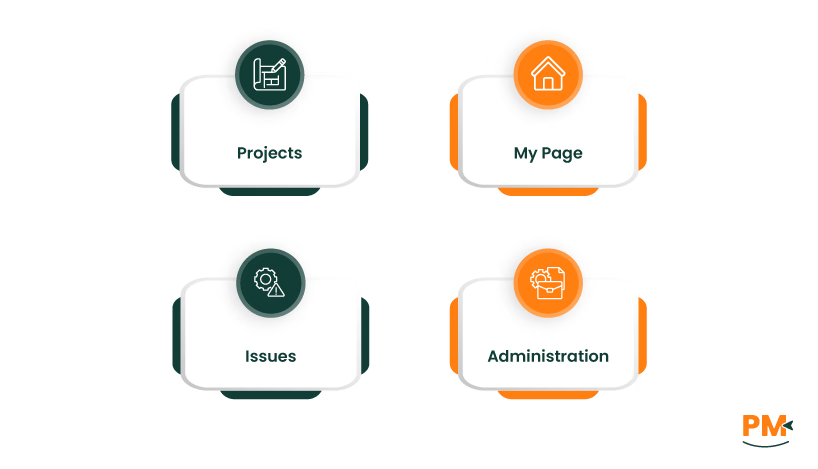
Understanding how to use Redmine for project management begins with familiarizing yourself with its intuitive interface. The main navigation consists of four key sections that provide access to all major functionality: Projects, My Page, Issues, and Administration.
- Projects: This section is the central hub for managing projects, offering an overview of active projects, key metrics, recent updates, and quick access to tools like issue tracking, time logs, and documentation
- My Page: It lets users view assigned issues, recent activities, and personalize their layout with customizable widgets and filters. This ensures quick access to role-relevant information
- Issues: The Issues section offers advanced filtering and search tools to easily find tasks, bugs, or feature requests. Users can create, save, and share custom views based on criteria like assignee, priority, or status for consistent reporting across the team
- Administration: The Administration section, accessible to authorized users, allows management of system settings, user accounts, workflows, custom fields, and plugins. Its organized interface makes it easy to navigate and update configurations without disrupting other settings
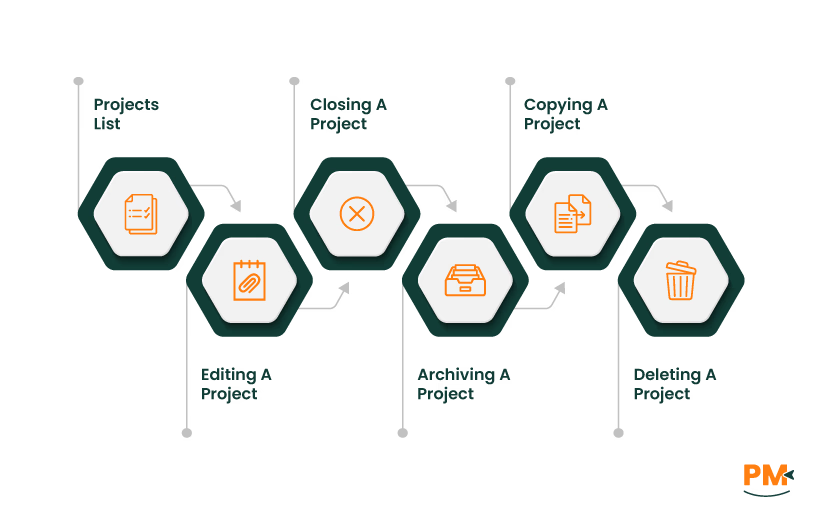
Redmine offers a framework for creating and managing projects. Projects can be tailored at setup and continually managed through the administrative panel, offering organizations granular control over visibility, access, and structure.
Creating A Project
To create a new project:
- Navigate to the ‘Projects’ tab and click ‘New Project’
- Complete the form with the project name, identifier, and a short description
- Select the relevant modules to enable (e. g. , ‘Wiki,’ ‘Time Tracking,’ ‘Documents’)
- Configure any custom fields, issue trackers, or default settings required for the team
- Modules can be activated or deactivated based on team needs. For example, developers may enable repository access, while content teams may use document and wiki modules.
Managing Projects
Redmine offers comprehensive tools for ongoing project management, accessible primarily via the ‘Administration’ area.
Projects List
The project list displays all active projects by default. Administrators can filter to view archived or all projects. While non-administrators can create or close projects within their scope, administrative actions, including deletion or archiving, are reserved for system-level users.
Displayed information includes:
- Project: The official project name
- Description: A summary of the project's purpose
- Public: An icon indicates whether the project is publicly visible
- Created: The date the project was established
Editing A Project
Project settings can be adjusted at any time by accessing the Settings tab within a project. Teams can rename the project, modify permissions, change enabled modules, and fine-tune issue tracking.
Closing A Project
A closed project becomes read-only. While its contents remain accessible, no further edits or additions can be made to this document.
Archiving A Project
Archived projects are hidden from regular users but retain all data. They can be restored at any time by an administrator. This function helps reduce interface clutter without deleting historical data.
Copying A Project
Projects can be duplicated by using the ‘Copy link’ option in the project list. The new project form will be pre-populated with the original project settings, such as trackers and custom fields. Administrators can select which elements (e. g. , issues, versions, members) to replicate in the new instance.
Deleting A Project
Projects can be permanently removed by clicking the Delete link in the project list. A confirmation prompt ensures that deletion is intentional. This action is irreversible and should be used with caution.
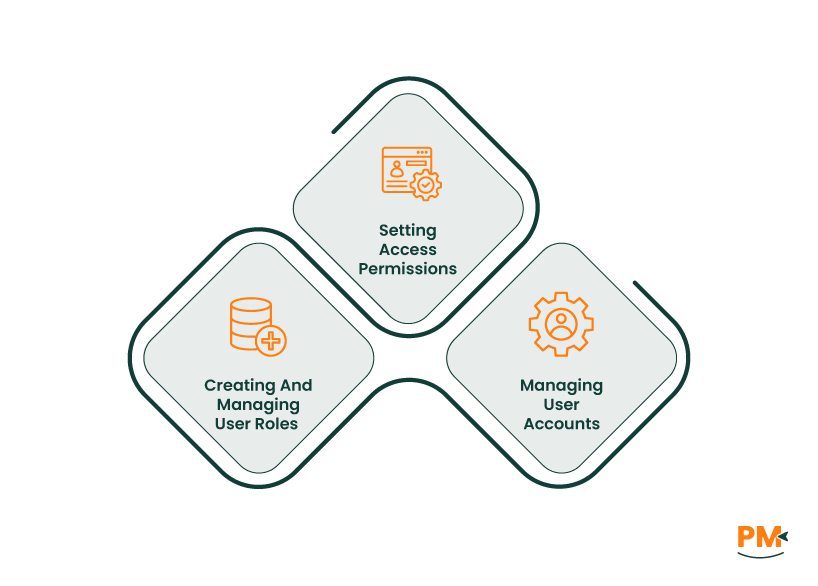
Security and visibility are fundamental to Redmine's structure. Role-based permissions allow precise control over user access to system features and project content, ensuring that teams operate efficiently without compromising data integrity.
Creating And Managing User Roles
Roles in Redmine define what users are allowed to do within projects. Administrators can create new roles or modify existing ones from the Administration area under ‘Roles and Permissions.’ Each role can be assigned a specific set of permissions, such as:
- Viewing or editing issues
- Logging time
- Managing files and documents
- Creating or modifying project settings
Typical roles include ‘Manager,’ ‘Developer,’ ‘Reporter,’ and ‘Guest,’ but organizations can define custom roles that better align with internal structures.
Setting Access Permissions
Permissions are associated with each role and can be assigned either globally or on a per-project basis. Administrators select which features and modules are accessible, ensuring that team members only see relevant content. Permissions can also restrict sensitive actions, such as deleting issues or modifying workflows.
Redmine supports two special roles by default:
- Non-member: Defines permissions for users who can access public projects but are not project members
- Anonymous: Applies to users who are not logged in
Managing User Accounts
User accounts are created and managed under the ‘Users’ section in the ‘Administration Panel.’ Administrators can:
- Create, activate, or lock user accounts
- Assign users to specific projects and roles
- Organize users into groups for batch permissions management
- Set authentication via internal database, LDAP, or other external services
Redmine's issue tracking system is built to manage a wide range of work items, including tasks, bugs, features, and support requests. Each issue functions as a unit of work with configurable fields that support tracking and accountability across teams.
Using Issues To Manage Work
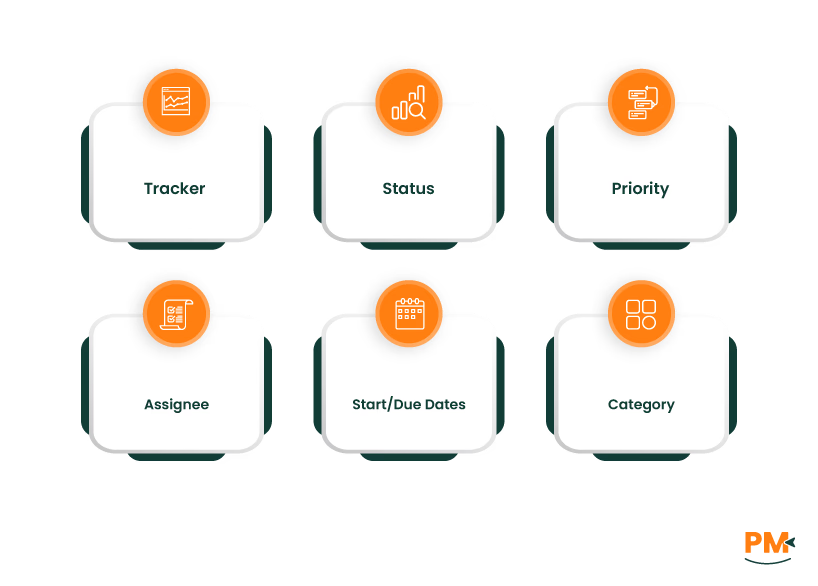
An issue in Redmine includes several configurable fields:
- Tracker: Specifies the type of issue (e. g. , ‘Bug,’ ‘Feature,’ ‘Task’). Trackers help classify and manage different work streams
- Status: Indicates the current stage of the issue (e. g. , ‘New,’ ‘In Progress,’ ‘Resolved,’ ‘Closed’)
- Priority: Sets the urgency of the issue
- Assignee: Assigns the issue to a specific team member
- Start/Due Dates: Define the timeframe for completion
- Category: Allows grouping of issues by function or area
Issues can be updated with notes, attachments, and time logs as work progresses. They may also be linked to related tasks to track dependencies or sub-tasks.
Custom Trackers And Fields
Administrators can define custom trackers to align with organizational workflows. For example, a software team might use ‘Bug’ and ‘Feature,’ while a marketing team might use ‘Campaign’ or ‘Asset Request.’
Custom fields, such as dropdowns, text fields, or checkboxes, can be added to issues to capture specific data relevant to the team or department.
Workflow Customization
Redmine supports detailed workflow customization for each tracker and role.
- Transition Rules: Define allowed status changes per role and tracker
- Role-Based Control: Ensure only designated roles can perform specific transitions (e. g. , QA moves to Verified)
- Field Permissions: Set specific fields to required, optional, or read-only based on status or role
- Workflow Access: Configure under Administration > Workflow for visual editing
- Automation Support: Enable automatic updates, role-specific visibility, and streamlined data validation
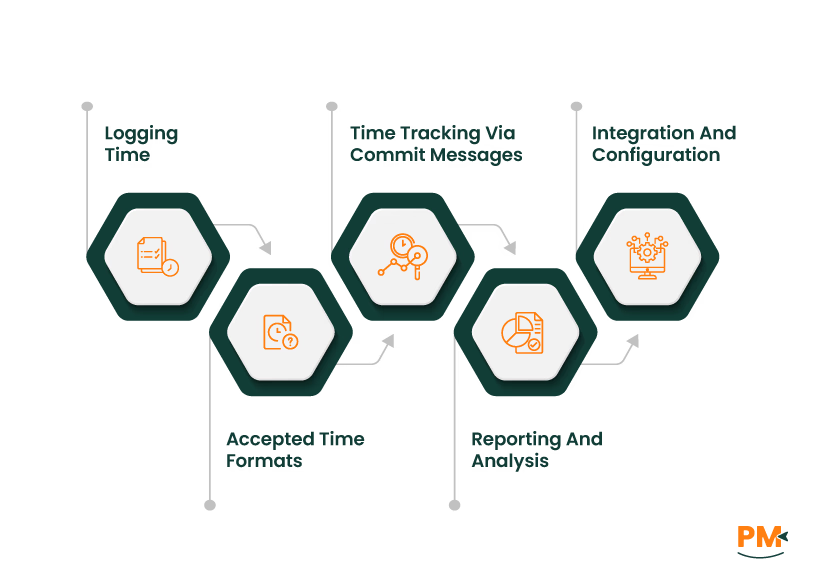
Redmine’s time tracking enables users to log the amount of work accomplished on specific issues or broader projects. Every entry of spent time is tied to a particular user and can be categorized by activity type, such as development, testing, or project management.
Time tracking is a standard module and can be enabled and disabled depending on the project:
- When creating a new project, activate the ‘Time Tracking’ module in the ‘Modules’ section
- For existing projects, enable or configure time tracking in the ‘Settings’ tab under Modules
Logging Time
Logging work hours in Redmine can be performed at both the issue and project levels:
- On an Issue: From the issue details view, select ‘Log Time.’ This opens a form to specify hours worked, select the activity type (e. g. , coding, documentation), and leave explanatory comments. It is also possible to log time simply by updating the issue
- At the Project Level: Navigate to the project's overview or time tracking section and log hours, leaving the issue field blank. This method helps record time spent on activities not tied to a specific issue, such as general planning or administrative tasks
Accepted Time Formats
Redmine recognizes multiple formats for entering estimated or spent time:
- Separated Formats: Enter time using hours and minutes as integers, such as 1h, 1 h, 1 hour, 2 hours, 30m, 30min, 1h30, 1h30m, or 1:30
- Decimal Formats: Enter as fractions of hours, using either a period or a comma as the decimal separator: 1.5 (or 1,5) for 1 hour and 30 minutes
Time Tracking Via Commit Messages
Redmine supports logging time directly through commit messages if repository integration is enabled:
- Enable time logging for commit messages under Application Settings → Repositories
- Precede logged time with a valid issue reference in the commit message
For example: Fixed something, refs #435 @1h30
This statement adds 1 hour and 30 minutes of spent time on issue #435
Activity types must be configured in the Activity logged time application settings to ensure accurate logging for each commit.
Reporting And Analysis
Redmine provides detailed reporting for spent time:
- Access spent time details or summary reports at the project level to analyze total hours by user, activity, date, or issue
- These reports are essential for resource allocation, billing, and identifying progress relative to project estimates
Integration And Configuration
Redmine offers granular control over how time is logged and reported. Here's a closer look at the key steps involved in setting up time tracking within your Redmine environment.
- Module Activation: Time tracking is a standard Redmine module and must be enabled per project. This can be done via the ‘Modules’ section when creating a new project or from the Settings tab of an existing one
- User Association: Every time entry is tied to a specific user, which supports internal accountability and enables accurate reporting of billable hours
- Project-Level Control: Time tracking behavior can differ across projects depending on module activation, providing flexibility in how time logging is applied organization-wide
Visual project planning with Gantt charts and calendars helps teams understand project timelines, dependencies, and resource allocation at a glance. The Gantt chart functionality automatically generates visual representations of project schedules based on issue due dates, estimated times, and dependency relationships.
Gantt Charts
Gantt charts are ideal for planning long-term goals, coordinating teams, and identifying bottlenecks early.
- Timeline Visualization: Display tasks and their durations across a horizontal timeline
- Dependencies: Visualize relationships between issues, including start-to-start and finish-to-start links
- Progress Indicators: Track how much work has been completed on each issue
- Filters: Narrow down the view by project, tracker, priority, or assignee
- Drag And Drop Planning: Adjust tasks and milestones directly in the Gantt view using drag-and-drop
- Task Priorities: See and manage the priority of tasks in the timeline
- Zoom Options: Switch between day, week, month, or year views for different planning needs
- Project Movement: Move entire projects, including sub-projects and tasks, in a single operation
- Quick Edit Popups: Double-click any task to open a popup window for quick edits to parameters and scheduling
Calendars
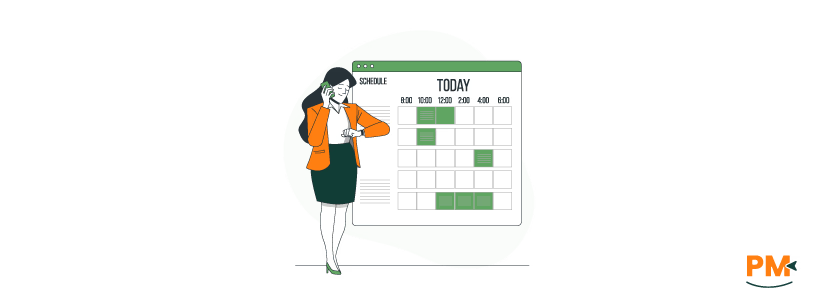
Redmine’s built-in calendar provides a visual representation of project activities based on issue scheduling. It enables teams to stay on top of deadlines, monitor their workload, and coordinate more effectively across projects.
- Issue and Version Tracking: Automatically displays issues with start and/or due dates, and version due dates within a monthly view
- Interactive View: Provides a clear overview of scheduled tasks, deadlines, and milestones in calendar format
- Filter Support: Shares the same powerful filtering system as the Issues page filter by status, priority, tracker, assignee, etc.
- Cross-Project Visibility: Displays issues from multiple projects, if accessed from the top menu
- Visual Project Planning: Enhances team coordination by allowing quick identification of overlapping tasks or missed due dates
Tailoring Redmine to match your team's specific needs involves configuring various customization options that adapt the system to your workflows, terminology, and business processes.
- Custom Fields: This enables companies to capture project-specific information through configurable fields across issues, projects, and users. These fields support various data types and rules, helping teams align data entry with internal standards
- Issue Templates: Predefined templates simplify the creation of recurring tasks by auto-filling key fields and checklists. This ensures consistent data capture and speeds up issue reporting across departments
- Workflow Customization: Automated workflows can assign tasks, escalate delays, or trigger alerts based on business rules. This reduces manual oversight and helps maintain process compliance across teams
- Modular Configuration: Redmine’s modular setup lets teams enable only the tools they need. Development teams may use full tracking, while HR or marketing can streamline the interface by disabling unused features
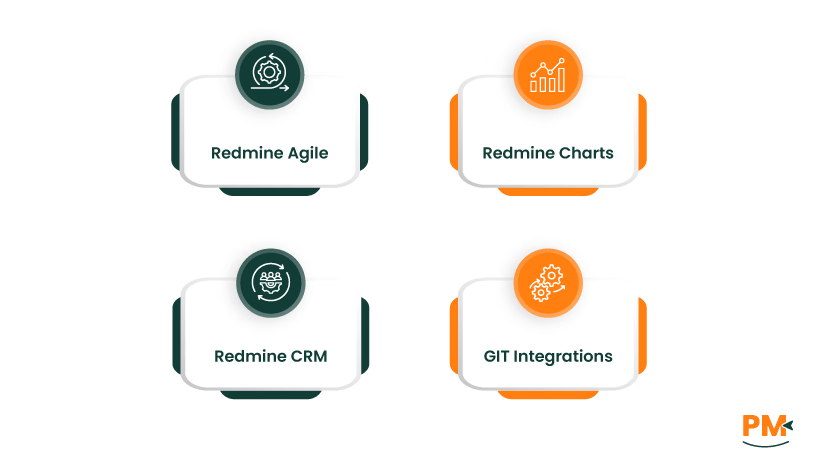
Redmine’s plugin ecosystem makes it highly extensible through the use of plugins. By adding specialized plugins, organizations can upgrade Redmine into a complete business operations platform, fine-tuned to support Agile workflows, reporting, customer relationship management (CRM) processes, and development pipelines.
Redmine Agile
This plugin introduces powerful Agile project management capabilities, including customizable Scrum and Kanban boards, sprint planning, backlog prioritization via drag-and-drop, user story management, velocity tracking, and Agile analytics. It transforms Redmine into a workspace suitable for fast-paced and iterative Agile teams.
Redmine Charts
The advanced reporting plugins empower teams to visualize data through interactive dashboards and real-time charts. Features include custom report builders, cross-project analytics, workload distribution, and export tools for sharing insights in PDF, Excel, or HTML.
Redmine CRM
The CRM plugin enables centralized management of contacts, sales pipelines, customer communications, files, and emails. With reporting, sales funnel visualization, and workflow automation, Redmine becomes a comprehensive solution for customer relationship management.
GIT Integrations
By connecting Redmine to GIT, SVN, or Mercurial repositories, teams can automatically link commits to issues, view code changes within Redmine, and track repository activity. Plugins often provide commit referencing, issue auto-closure from commit messages, and even integration with popular CI/CD platforms.
Implementing effective project management practices in Redmine requires establishing clear conventions, processes, and review procedures that promote consistency and accountability across your organization.
- Establish clear naming conventions for projects, issues, versions, and custom fields to ensure consistency and easy organization
- Use descriptive project names that reflect purpose and scope
- Apply consistent issue titles with key details like components or feature areas
- Create logical categories that align with your team’s workflow
- Use consistent priority and severity ratings for better clarity
- Implement tagging systems to enable flexible filtering and reporting
- Manage sprints and milestones using Redmine’s version functionality
- Define clear sprint goals, durations, and planning cycles
- Track progress toward primary objectives through milestone tracking
- Conduct regular reviews of custom fields, workflows, and permissions
- Ensure your Redmine setup evolves with your team’s changing needs
Is Redmine suitable for Agile project management?
With plugins like Redmine Agile, teams can run sprints, plan backlogs, and visualize tasks with boards and burndown charts.
Can Redmine integrate with Git, SVN, or CI tools?
Redmine supports Git, SVN, and Mercurial repositories. Integration allows commit linking, change tracking, and time logging via commit messages.
How secure is project data in Redmine?
Redmine provides security through role-based permissions, HTTPS support, and access control. Proper server configuration further enhances protection.
Are there any mobile apps for Redmine?
Yes. Although there's no official app, third-party clients such as RMClient and RedminePM offer mobile-friendly interfaces for task tracking and time logging.
Can non-technical teams use Redmine effectively?
With customized trackers, fields, and modules, Redmine can support HR, legal, marketing, and operations teams just as well as development teams.