

Zoho Projects is a comprehensive, cloud-based project management solution designed to help teams plan, track, and complete work efficiently. It supports customizable workflows, built-in collaboration tools, and a user-friendly interface that adapts to different project types and team structures.
If you’re learning how to use Zoho project management, this guide will walk you through each essential step. It covers project setup, how to track time, task assignments, and progress monitoring using built-in reports.
Zoho Projects gives teams a structured environment to manage work from day one. Setting it up correctly ensures smoother workflows, better task visibility, and more efficient collaboration.
Creating Your Zoho Projects Account
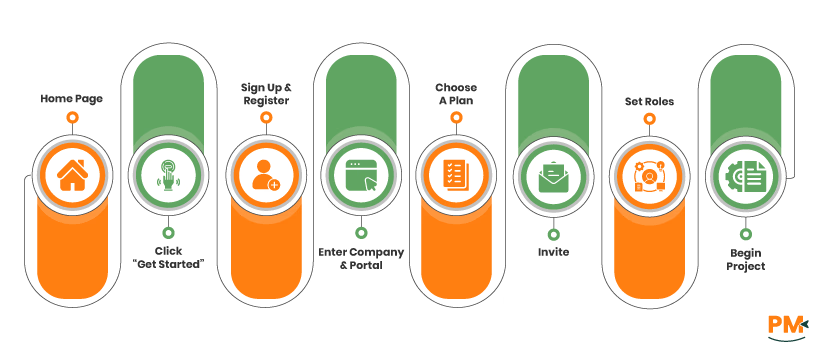
Visit the Zoho Projects homepage and click ‘Get Started.’ Sign up with your email or use a Google/Microsoft account. After registering, enter your company and portal name,this becomes your team’s workspace URL.
Choose a plan based on your needs. The Free Plan allows up to 5 users with core features, while paid plans unlock Gantt charts, time tracking, and automation. Once inside the dashboard, you can invite teammates, set roles, and begin building your first project.
Setting Up Your Portal And Projects
Your Zoho Projects portal serves as the centralized space where all projects, users, and settings are managed. To configure your portal, go to ‘Portal Settings’ under your user menu. You can adjust your logo, date/time format, time zone, task statuses, and billing preferences from this page.
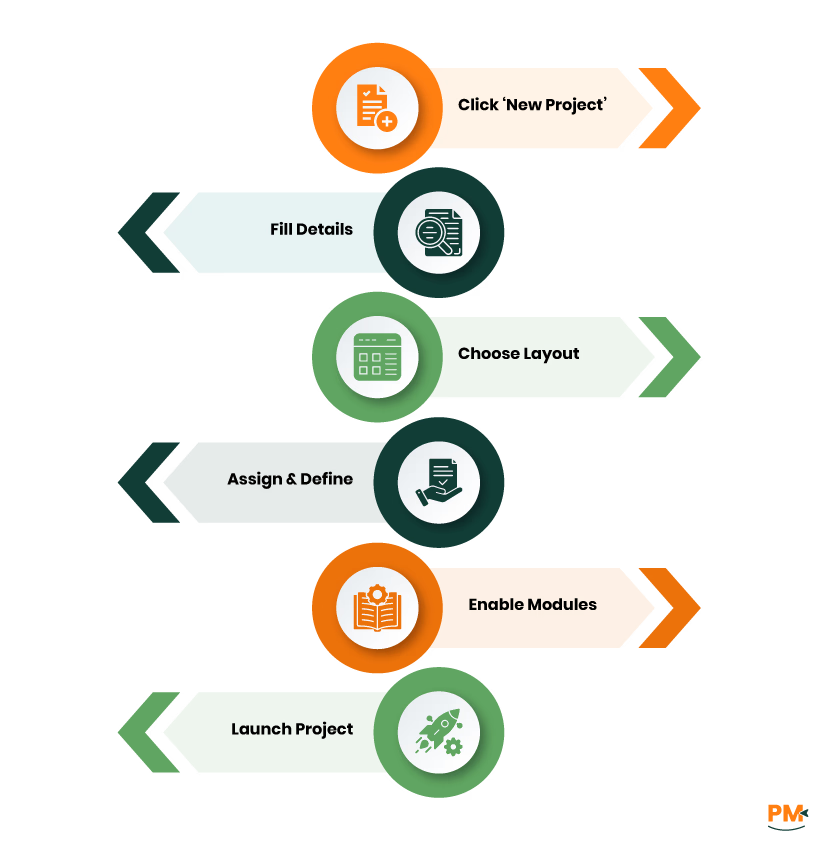
To create a project:
- Click the ‘Projects’ tab and select ‘New Project’
- Fill in the project name, start and end dates, description, and owner
- Choose the layout type (Classic for task-based views, plain for minimal layout)
- Assign users and define project roles
- Enable modules like milestones, time tracking, forums, and documents
- Click ‘Create’ to launch the project workspace
Setting up your portal and projects correctly ensures that your team’s structure aligns with Zoho’s features. This also helps new users understand what Zoho project management tool is and how to configure it for real-world project execution.
Once your portal is configured, structuring your projects properly is key to delivering work on time. Zoho Projects gives you tools like milestones, task lists, and assignments to organize large projects into smaller, trackable parts. This structure forms the core of how to use Zoho project management effectively, especially when managing multiple deliverables or cross-functional teams.
Utilizing Milestones And Task Lists
Milestones in Zoho Projects define major checkpoints such as phase completions or client approvals. Each milestone includes a name, owner, status, and deadline, and can be marked as public or private. You can create them from the ‘Milestones’ tab within any project.
Task lists group related tasks under each milestone. Task lists support custom sorting, automation rules, and access settings to control visibility and workflow behavior.
Together, milestones and task lists provide a scalable framework that keeps complex projects structured and measurable.
Creating And Assigning Tasks
Tasks are the actionable items your team works on daily. In Zoho Projects, each task includes key fields like title, assignee, priority, start/end dates, duration, and status. You can also add descriptions, subtasks, checklists, file attachments, and comments.
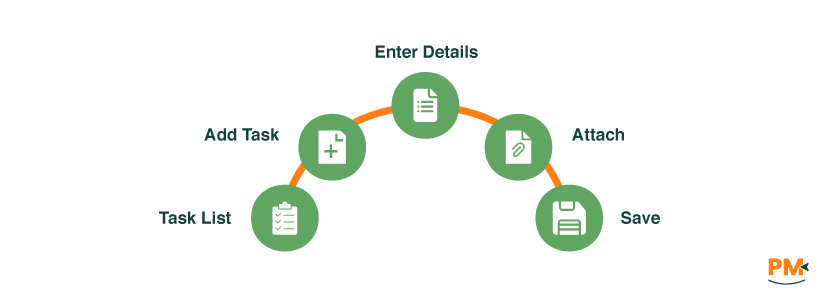
To create a task:
- Open the relevant task list
- Click ‘Add Task’
- Enter the task details such as title, owner, deadline, priority
- Add tags, descriptions, or files if needed
- Click ‘Save’
Once created, the assigned team member is notified and can update the task through their dashboard. Tasks can also be connected via dependencies to reflect real execution order.
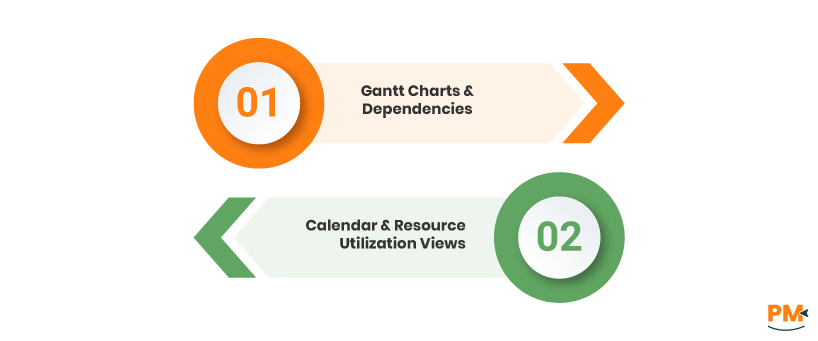
Managing timelines requires more than checklists; it requires visual clarity. Zoho Projects offers Gantt charts, calendar views, and resource utilization charts to help teams plan, track, and adapt their schedules efficiently. These tools make it easier to detect task overlaps, manage dependencies, and balance workloads across team members.
Gantt Charts And Dependencies
In Zoho Projects, Gantt charts give a real-time visual timeline of all tasks. When you create tasks with start and end dates, they appear as bars on a horizontal chart. Each task bar reflects duration and includes a progress indicator to show how much is complete.
You can link tasks using dependencies such as finish-to-start or start-to-start by dragging connectors between them. If a task is delayed, dependent tasks adjust automatically to maintain schedule logic. This helps prevent conflicts and ensure smooth project flow.
Calendar And Resource Utilization Views
The Calendar view lets you see all tasks, milestones, and events in daily, weekly, or monthly layouts. Tasks can be rescheduled directly by dragging them, making it easy to spot overlaps or shifting priorities.
The Resource Utilization chart shows each team member’s workload, comparing assigned hours to capacity. It updates in real time as tasks change, helping managers redistribute work, avoid burnout, and maintain a balanced load across the team.
Zoho Projects simplifies team communication by offering built-in tools that reduce email dependency and keep all updates in one place. Whether your team is remote or in-office, real-time feeds, structured forums, and app integrations help ensure that nothing important slips through the cracks.
Utilizing Feeds And Forums
The Feeds section acts like a live project bulletin, logging task updates, comments, and milestones as they happen. Team members can post status updates, tag others, and react instantly, keeping communication fluid and visible.
Forums support longer discussions like Q&As or decision threads. Each topic is tied to a project and stored permanently, making it easy to revisit key conversations, clarify details, or share reference documents.
Integrating With Communication Tools
Zoho Projects integrates with Zoho Cliq, Slack, and Microsoft Teams to centralize project updates within your team’s preferred communication tools.
With Zoho Cliq, users can receive task updates, start discussions, and create tasks directly from chat. Slack integration sends project notifications to selected channels, allowing quick replies and visibility. Microsoft Teams adds Zoho Projects as a tab inside Teams channels, giving access to tasks, milestones, and dashboards without switching apps.
All integrations can be enabled from Integrations settings in Zoho Projects.
Manual task tracking slows teams down. Zoho Projects offers automation features that eliminate repetitive steps, enforce consistent workflows, and keep projects moving without micromanagement. These tools help ensure that no critical step is missed while reducing the time spent on routine updates.
Setting Up Blueprints
Blueprints in Zoho Projects allow you to map out task workflows step by step. You define each task status and set the conditions under which tasks can move from one stage to another.
To create a Blueprint:
- Go to Setup > Automation > Blueprint
- Choose a task layout to automate
- Define the sequence of ‘statuses’ and add ‘transitions,’ such as who can trigger them, under what conditions, and with what actions like notifications or field updates
This ensures tasks follow a structured path and can’t skip steps, reduce errors and keeping project standards intact.
Utilizing Task Automation Rules
Zoho Projects allows you to create custom automation rules that enables actions when specific task conditions are met. These rules help eliminate repetitive work and enforce consistency across projects.
You can configure actions like:
- Sending alerts when a task is overdue
- Updating fields based on priority or status
- Creating follow-up tasks automatically
- Notifying users when task ownership changes
To set them up, go to Setup > Automation > Workflow Rules. Choose your trigger condition, define filters (if needed), and select the desired action. These rules adapt to different project workflows, reducing manual oversight while ensuring timely execution.
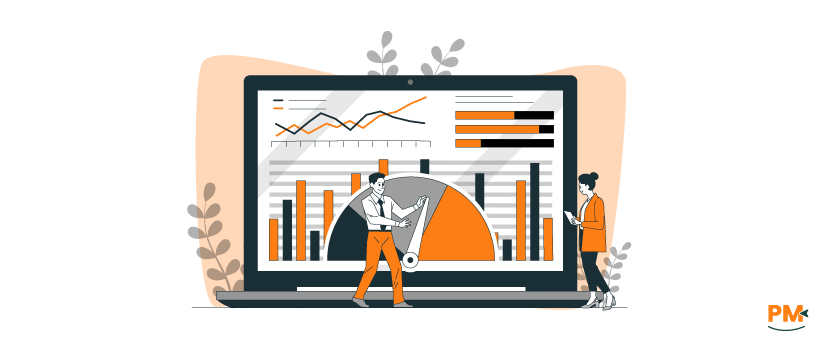
Zoho Projects offers flexible dashboards and reporting tools that help you track project health and team output without relying on external spreadsheets. These tools centralize updates and give managers real-time visibility into performance across all ongoing work.
Building Custom Dashboards
To create a dashboard that aggregates data across multiple projects in Zoho Projects, go to Home > Dashboards, then click Customize. From there, select widgets such as Task Status, Timesheets, Milestone Progress, and Issue Summary.
Each widget can be configured to pull data from several projects, giving you a unified view of workloads, deadlines, and KPIs in one place. This high-level snapshot helps project managers monitor performance and make fast, informed decisions.
Generating Reports For Insights
Zoho Projects includes built-in reports that help track timelines, task completion, and resource allocation. These reports assist managers in reviewing project health and identifying issues before they escalate.
To generate reports:
- Go to Reports > Project Reports in the top navigation bar
- Select from options like Task Reports, Timesheet Reports, or Resource Utilization Reports
- Use filters to focus on specific users, timeframes, or projects
- Analyze task progress, logged hours, missed deadlines, and workload distribution.
- Export the report as PDF or Excel for documentation or team meetings
These reports deliver real-time insights that support data-driven decisions and help maintain productivity across your team.
Zoho Projects connects easily with both Zoho's internal tools and widely used external platforms. These integrations help teams reduce manual steps, improve coordination, and keep all project data in one place.
Zoho Ecosystem Integrations
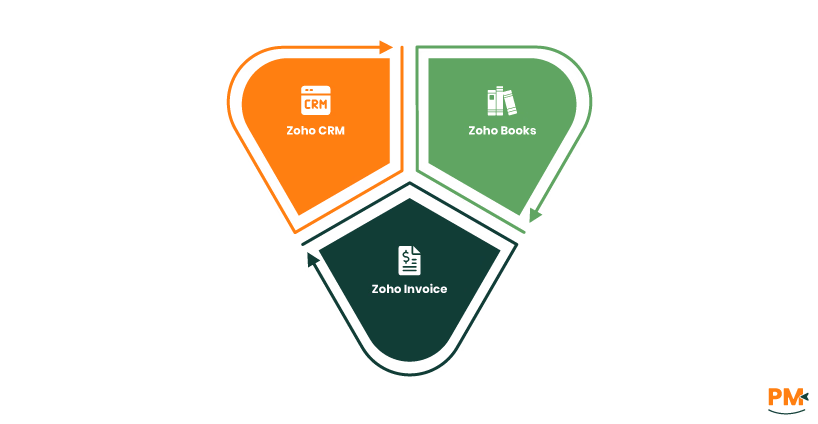
Zoho Projects integrates seamlessly with other Zoho tools to create a connected work environment where project data flows across departments.
- Zoho CRM: Link deals to projects so sales and delivery teams work from shared information. When a deal is closed in CRM, a new project can be created directly in Zoho Projects for execution
- Zoho Books: Sync project timesheets and expenses to automate accounting entries. This connection reduces double entry and keeps financials up to date
- Zoho Invoice: Use logged hours and billable tasks from Zoho Projects to create accurate invoices. Invoices can be generated quickly and sent without needing to switch platforms.
All these integrations are available under the Setup > Integration > Zoho Apps section in your Projects portal.
Third-Party Integrations
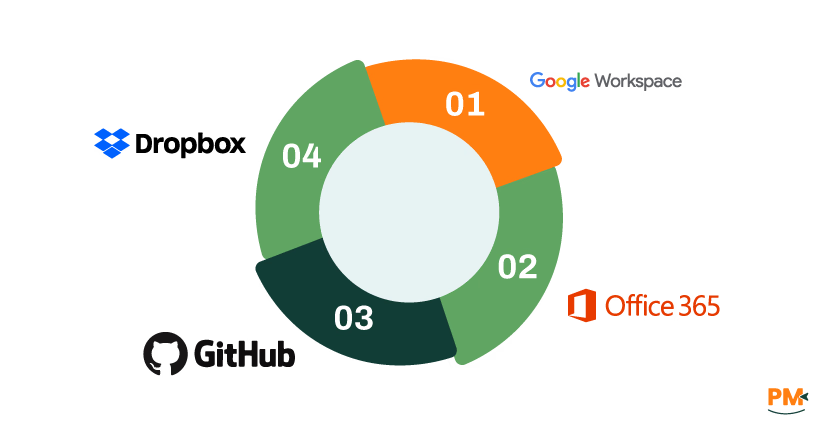
Zoho Projects supports integrations with widely used third-party apps, making it easier to manage files, code, and communications from a single platform.
- Google Workspace: Attach Google Docs, Sheets, and Slides directly to tasks or comments. You can also sync Google Calendar events with project milestones and due dates
- Microsoft Office 365: Link files from OneDrive or collaborate using Word and Excel within tasks. Calendar sync keeps project events aligned with your team’s Office calendar
- Dropbox: Attach and preview Dropbox files without leaving Zoho Projects. This helps maintain a central source of project documents
- GitHub: Connect GitHub repositories to track commits, issues, and pull requests related to specific tasks or bugs. Developers can work in GitHub while managers track progress in Zoho
To enable these, visit Zoho Projects > Setup > Integration > Third-Party Apps and follow the prompts.
Applying the right methods can help your team work more efficiently and get the full value from Zoho Projects. Below are practical strategies based on real usage:
Project data must reflect current realities to support informed decisions. Regularly reviewing timelines, task statuses, and team assignments helps identify risks early, correct discrepancies, and maintain trust in reports. Up-to-date information keeps your team aligned and planning accurately.
Training Team Members
Equip your team with hands-on training or resource guides tailored to their needs. Familiarity with Zoho Projects' tools, such as task tracking, reporting, and communication features. This boosts adoption and ensures everyone uses the system effectively from day one.
Can Zoho Projects handle Agile project management?
Yes. Zoho Projects includes features like task boards, sprints, and backlogs that support Agile workflows. You can create epics, assign story points, and monitor progress using velocity charts and burn-down reports.
Is Zoho Projects suitable for large enterprises?
Yes. While it's popular with small to mid-sized teams, Zoho Projects also supports large organizations through role-based permissions, custom fields, advanced reporting, and integrations with enterprise tools like Zoho CRM and Microsoft Teams.
Does Zoho Projects offer mobile access?
Absolutely. Zoho Projects provides mobile apps for both Android and iOS devices, enabling users to manage tasks, log time, and communicate with their team on the go.
How secure is data on Zoho Projects?
Zoho Projects adheres to industry-standard security protocols including data encryption, two-factor authentication, and GDPR compliance. Data is stored in secure, globally distributed data centers with continuous monitoring.
Can I customize Zoho Projects to fit my team's workflow?
Yes. Zoho Projects allows extensive customization; users can configure statuses, task layouts, custom fields, automation rules, and even Blueprints to match specific processes.